Choosing automatic or manual roll detection
MetisTrades can link an option close and its replacement open into a roll chain for you, or show only the chains you build by hand. Here is where that account-wide switch lives, what it changes, and how to confirm the setting saved.
What you are setting up and why
A roll is what happens when you close an option and open a replacement on the same underlying, with a different strike, a different expiration, or both. You did one trade in your head; your broker reported two.
A roll chain is the ordered history that forms when one rolled position leads to another. An option opened in January, rolled in February and rolled again in March is three positions and two rolls. Seeing them as a chain lets you judge the result of the whole sequence instead of reading each closed link as an unrelated trade.
MetisTrades can build those chains two ways. It can attempt to match a closing trade with a compatible opening trade from your imported activity, or it can show only the chains you assemble yourself in the Roll Chain Builder. The Roll Detection card in Account Settings holds that one preference: Detect rolls automatically.
Automatic matching is an inference drawn from imported fills, not a statement of your broker's intent. It works from the transaction details available to the app, and ambiguous activity — same-day trades without shared order information or precise timestamps — may not express what you meant. The fallback rules can pick a nearby strike that was not the roll you intended. The switch exists so you can decide how much of that inference you want in your records.
What depends on this setting: the chains shown on Open Positions, Closed Positions, Position Details and Roll Analysis, how wheel tracking follows put rolls, and how scaled-up positions are matched. It does not change your original imported transactions.
Before you start
- A signed-in Pro account. The Roll Detection card is available to Pro subscribers. Active access includes an active subscription, a trial, unexpired access after cancellation, or lifetime access. Account Settings requires sign-in, so an anonymous session cannot reach it.
- Your transactions already imported. Automatic detection has nothing to match until option activity is in the account.
- A decision about scope. The preference is account-wide. It applies to every trading account on your MetisTrades login at once, not only the account selected elsewhere in the app.
- An understanding of what manual-only mode leaves in place. Chains you built with the Roll Chain Builder are kept; automatically built chains stop being shown.
Use this table to decide before you flip anything:
| Behaviour | Detect rolls automatically ON | Detect rolls automatically OFF |
|---|---|---|
| Automatic chains | Rebuilt from your imported activity | Automatic roll matching is skipped |
| Manual chains | Manual assignments override automatic membership | Only chains you build yourself are shown |
| Wheel tracking | Uses put and covered-call roll chains | Follows only put rolls you linked by hand |
| Scaled-up positions | Handled by the roll matching rules | Return to first-in, first-out matching |
Step by step
1. Open Account Settings
Use the user menu in the top right, then Account Settings. The direct route is /account/accounts.
2. Go to the Trading Accounts section
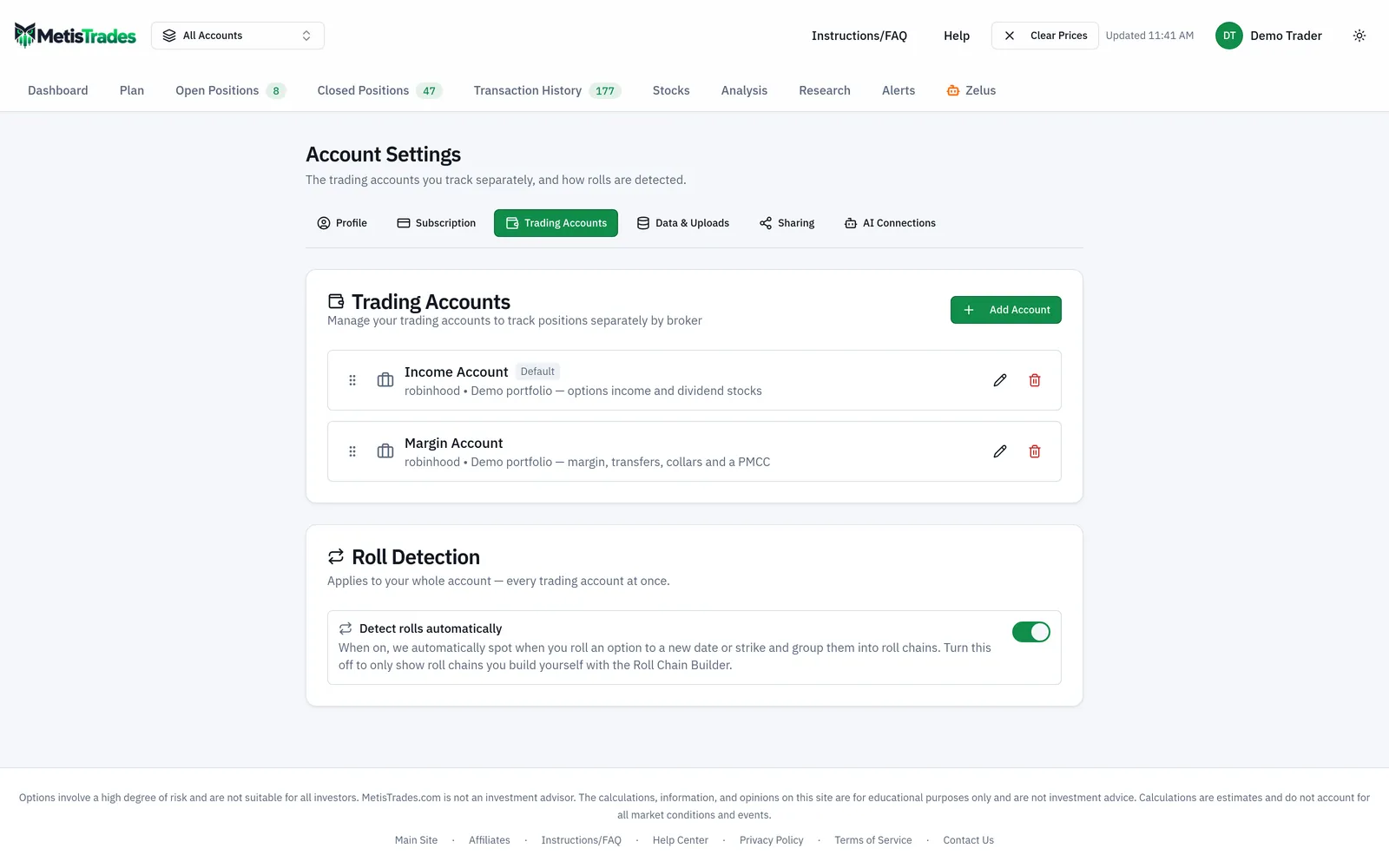
Choose Trading Accounts in the section bar. The Roll Detection card sits below Trading Accounts in that section when you have active access.
3. Read the card before you touch the switch
The card is titled Roll Detection and its description reads Applies to your whole account — every trading account at once. Look at the card title, the description line underneath it, and the current position of the Detect rolls automatically switch, which is on by default when no saved preference says otherwise.
4. Set the switch
Leave Detect rolls automatically on if you want the app to look for an option rolled to a new date or strike and group those positions into roll chains. Turn it off if you want only the chains you build yourself.
The switch is unavailable while the preference is being saved. Turning it on shows Automatic roll detection on and Rolls are detected automatically again. Turning it off shows Manual rolls only and Only roll chains you build by hand will be shown.
5. Let the views rebuild
After a successful change, position and transaction views are refreshed so the chains rebuild under the new setting. Automatic chains can appear or disappear immediately as a result.
6. If you chose manual only, build the chains you want
Turning detection off does not create chains for you. Open a position's details and use the Roll Chain Builder. It starts on Suggested, which lists positions for the same underlying with compatible strategy types; All Positions widens that to any option position for the underlying, and can be narrowed with All Strategies, All Status and All Contracts or sorted by entry date, closed date, expiration, strike or contract count. Select at least two positions and choose Save Chain. Manual links are ordered by entry date and carry an M badge.
Check it worked
Three places confirm the result.
Account Settings. Return to Trading Accounts and look at the card again. A correct result is the switch resting in the position you chose, with no error text on the card. The first sign something went wrong is the switch jumping back to its previous value alongside the message Could not save your roll detection setting. Please try again.
Position Details. Open a position you know was rolled. Roll Chain History shows, in its collapsed heading, the number of rolls, the number of positions and Chain Total P/L; expanding it shows the chain's totals and each link in order. Remember the roll count is positions minus one, so three positions is two rolls. In manual-only mode, links you built yourself carry the M badge.
Roll Analysis. This page summarizes roll activity across your imported positions. Look at the chains listed there and compare them against the trades you remember making.
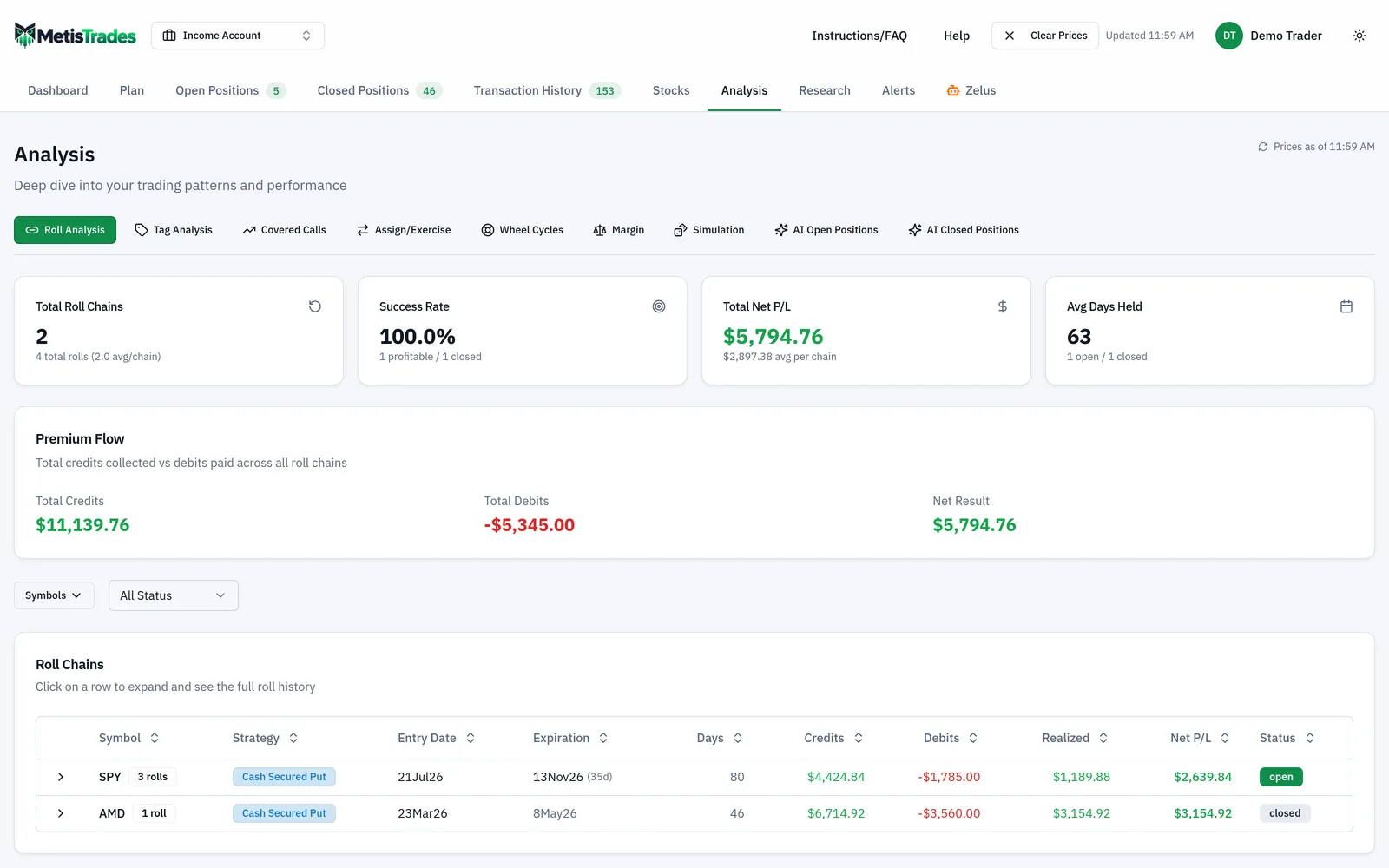
If a chain contains a position you did not intend to link, or a roll you did make is missing, that is the signal to correct it by hand rather than to flip the account-wide switch again.
Troubleshooting and common questions
The switch jumped back to where it was
The save failed, so the page restored the previous setting and displayed the error. Try again.
Are my manually built chains deleted when I turn the switch off?
No. Manual chain assignments still build when automatic detection is disabled. Turning detection off keeps chains built with the Roll Chain Builder and stops showing automatically built chains.
What happens to my manual edits when I turn automatic detection back on?
Automatic detection resumes, while saved manual chain assignments continue to override automatic membership for those positions.
Can I use the Roll Chain Builder while automatic detection is on?
Yes. Manual assignments override automatic detection for the positions you edit. To undo one, Reset to Auto clears the selected manual overrides and lets automatic detection decide again for those positions when the account-wide switch is on.
Two positions are linked that should not be
Open the Roll Chain Builder, leave fewer than two positions selected and choose Disconnect Chain. The separated positions remain independent and are protected from being immediately linked again by automatic detection.
Does this switch affect only the trading account I have selected?
No. The card explicitly applies the preference to your whole account and every trading account.
Why did wheel tracking change after I turned the switch off?
In manual-only mode, wheel tracking follows only put rolls you linked by hand.
Why did a scaled-up position group differently?
Manual-only mode returns scaled-up positions to first-in, first-out matching, which treats the earliest applicable opening as the one matched first.
The Roll Detection card is not on the page
After a subscription ends, the card is hidden and Account Settings shows Subscription Required with resubscription and data-export actions instead.
Does changing this alter my transactions?
No. This setting concerns roll grouping only. Manual grouping and the detection preference change how MetisTrades presents and totals a chain; neither alters your broker's transactions. All chain totals derived from imported transactions are estimates, and open-link values use delayed quotes when available, so they may differ from an executable closing price.
Related guides and help pages
Related guides
- Understanding Roll Chains: Tracking a Rolled Option as One Trade
- One Rolled Position, Two Ledgers: Chain P/L vs Tax-Year P/L
- A 90% win rate and $100 to show for it: how rolls hide inside your stats
- Plan, Track, Optimize: a complete tour of MetisTrades
- Did Your Rolls Pay Off? Measuring Roll Results Across the Whole Chain
- Short put deep in the money with a week left: assign, roll, or close?