Grouping and Splitting Imported Option Legs Correctly
When a broker file combines option legs that never belonged together — or leaves a spread in pieces — MetisTrades lets you group, ungroup or split the contracts. Here is a worked example of all three corrections.
What it does and when to use it
MetisTrades builds positions from transactions. You do not type in a finished strategy; the app reads your imported buys and sells and works out which option contracts belong together. That is a reconstruction, and like any reconstruction it can be wrong.
Three controls let you correct it:
- Grouping says that selected option transactions belong to one position.
- Ungrouping says that the legs of a multi-leg position should stand on their own.
- Splitting moves a chosen number of contracts out of one or more legs into a new position group, leaving the remaining contracts in the original.
Two terms matter here. A leg is one option contract within a position, defined by its underlying, expiration, strike, option type and opening direction. A multi-leg position is two or more legs that the app, or you, have identified as one strategy.
The usual reason you need these controls is thin broker data. When a file supplies a brokerage order identifier, and several option fills share it while covering different contracts, the app treats them as one multi-leg order. For automatically synced activity, execution-time proximity can connect legs when the identifiers do not line up. But Robinhood, Charles Schwab and Fidelity CSV-style exports can lack both execution timestamps and shared order identifiers, and Interactive Brokers Flex and other date-only exports can have the same limitation. When only the date is known, two orders placed hours apart can fall into the same candidate group. The app uses option shape, quantity matching and later roll behaviour to avoid unsupported combinations, and it deliberately avoids forming diagonal spreads from date-only proximity alone — but those clues cannot prove your original order intent. Review positions after importing busy same-day option activity.
These are editing actions, and they are scoped. They operate inside a specific trading account, and manual grouping is not available in the all-accounts view. Anonymous visitors can see positions created from their uploaded browser-session data but cannot save these manual grouping adjustments. Someone viewing a public share cannot change grouping or splitting at all.
A worked scenario
You trade XYZ in one trading account. On 12 March you placed three separate orders, all expiring 18 April. Your broker's CSV carries the trade date but no execution times and no order identifiers. Standard equity contracts here represent 100 shares, so every premium figure below is price × quantity × 100.
| Order | Transaction | Qty | Price | Amount |
|---|---|---|---|---|
| 1 (morning) | Sell to open XYZ 18 Apr 55 Call | 3 | $1.10 | +$330 |
| 2 (afternoon) | Buy to open XYZ 18 Apr 60 Call | 3 | $0.40 | −$120 |
| 3 (afternoon) | Sell to open XYZ 18 Apr 45 Put | 3 | $1.65 | +$495 |
| 3 (afternoon) | Buy to open XYZ 18 Apr 40 Put | 3 | $0.72 | −$216 |
Your intent was: three short 55 calls written against 300 shares you already own; a separate, unrelated long position in the 60 calls; and one three-lot put spread placed as a single order.
What the import produced was different in two ways.
The calls were combined. Same underlying, same expiration, same date, matching quantities of three, one short and one long — that is a valid vertical shape, so the builder grouped them into a single multi-leg position with a net credit of $330 − $120 = $210. The arithmetic is right; the intent is not. Those were two orders hours apart.
The puts were left apart. The put legs appear as two separate single-leg positions: a short put showing $495 collected and a long put showing $216 paid. Legs can be left separate when the file lacks reliable order evidence, when quantities do not satisfy the strategy, or when the combined shape does not classify.
There is also a third job. Once the put spread is grouped as one three-lot position, you decide you want to manage one of the three contracts separately from the other two. That is a split, not an ungroup: you are moving one contract out of each leg, not separating the legs.
Step by step in MetisTrades
1. Review what the import built
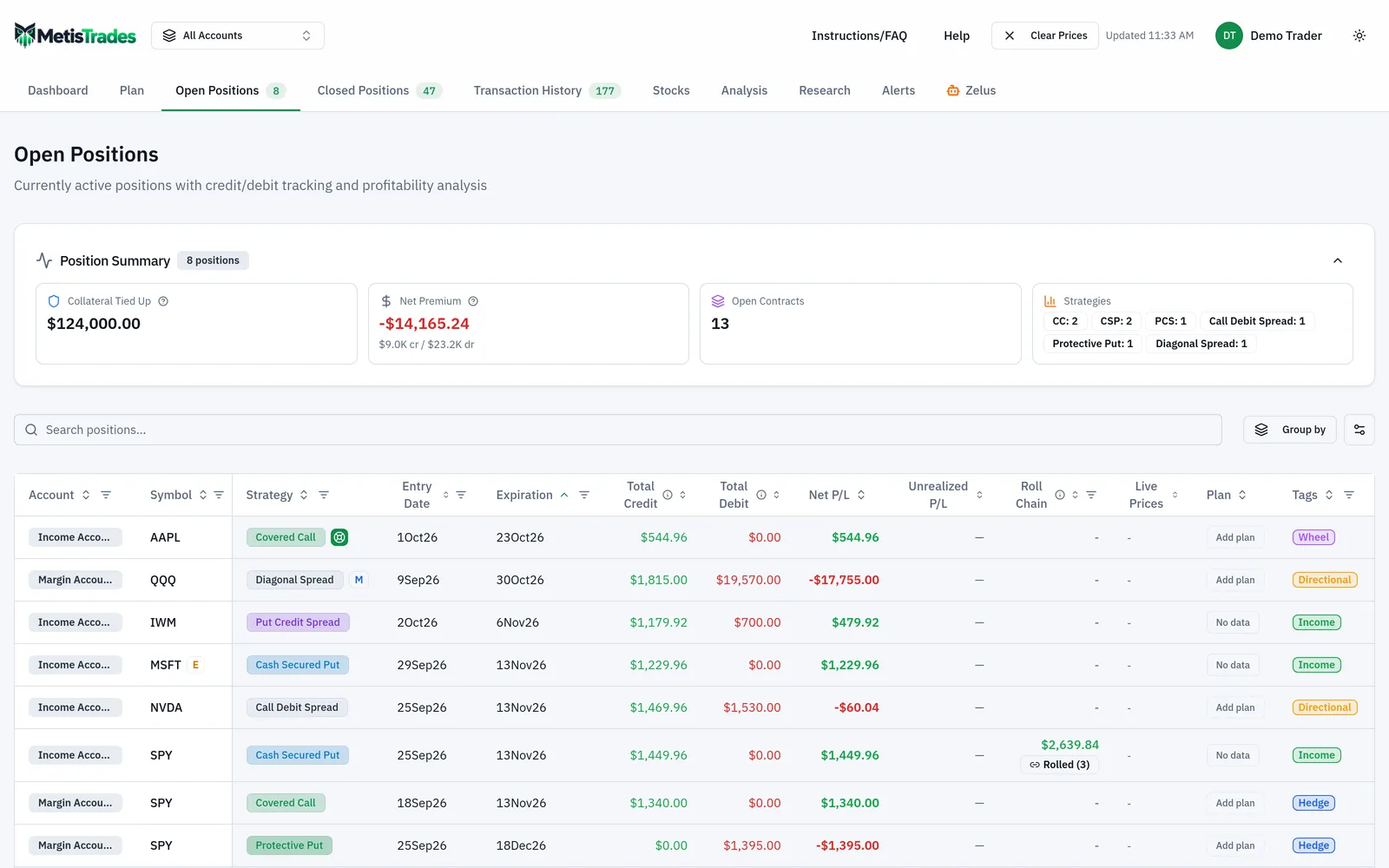
Start in Open Positions, filtered to the specific trading account that holds the XYZ activity. Look at the XYZ rows and ask one question of each: does this row match an order I actually placed? In the scenario, the combined 55/60 call row is the one that fails that test, and the two lone put rows are the ones that should have been a single spread.
2. Ungroup the calls
On the combined call row, use the unlink action whose tip reads Split this multi-leg position into separate legs. The app separates each distinct option leg and includes that leg's opening and closing activity, so the $330 credit stays with the 55 calls and the $120 debit stays with the 60 calls.
Each leg then receives its appropriate single-leg classification — Long Call, LEAPS, Long Put, Short Call or Short Put. Here the 55 leg becomes a short call and the 60 leg a long call. The operation requires at least two distinct option legs. When it finishes you see the message Position ungrouped, and the transactions are re-analyzed.
The separation is saved as a manual correction, so the automatic builder does not immediately put the legs back together on the next rebuild. If you decide you were wrong, the row offers Restore auto-grouping (undo ungroup), which removes the saved separation and lets the position builder analyze the transactions automatically again. For a position you grouped yourself, the same row action is described as Ungroup this manually grouped position and removes your manual grouping instead.
3. Group the put legs manually
Open Transaction History for that one specific trading account — grouping is blocked in the all-accounts view. Select the two opening put rows: the sell to open of the 45 puts and the buy to open of the 40 puts. The selection bar shows the count and the button Group as Position.
That opens Group Transactions as Position. Choose the Strategy Type that describes what you actually opened; grouping stays blocked until you pick one. The dialog previews Selected Transactions with Date, Description, Code and Amount, and a Position Summary shows Symbols, Transactions, Total Credit, Total Debit and Net P/L. For this scenario that reads XYZ, 2 transactions, Total Credit $495, Total Debit $216, Net P/L $279.
Select Create Position to save the grouping. Two rules decide whether the selection is accepted: the rows must contain at least one opening transaction (a buy to open or sell to open), and the selection cannot be only stock buys or sells, because manual position grouping is for options.
4. Split one contract out of the spread
Splitting starts from the position itself. Open the grouped put spread's detail view and select Split. If the button is disabled, the position is not tied to a specific account and the app tells you to select a specific account first.
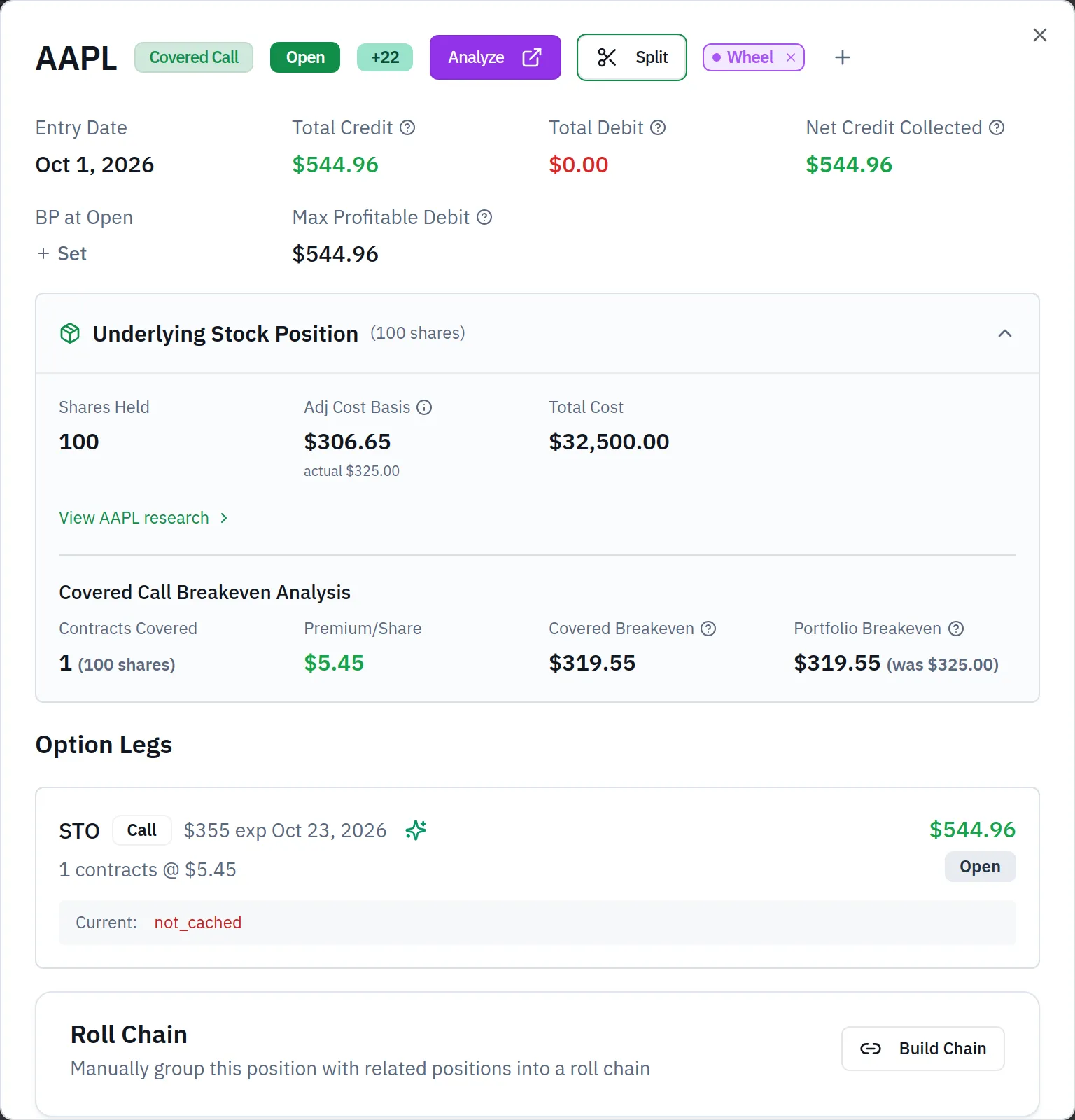
The Split Position dialog asks for a Target Strategy Type — the label the new group will carry — and then lists Legs to Split with columns for Option, Expiration, Strike, Type, Current Qty and Move Qty. Every Move Qty starts at 0 and cannot exceed that leg's Current Qty, and at least one leg must have a quantity greater than 0.
In the scenario, both legs show Current Qty 3. Enter Move Qty 1 on the short 45 put and Move Qty 1 on the long 40 put. The Split Summary shows each selected leg's moved quantity and the new strategy. Select Split Position to create the new group; the original position retains the two contracts per leg you did not move. For a closed leg, the app also allocates matching closing lots to the moved quantity in first-in, first-out order.
A split position shows Unsplit in its detail; the Unsplit Position confirmation removes the split, merges the contracts back and recalculates the strategy.
How to read the results
After the ungroup, you no longer have a $210 net-credit vertical on XYZ. You have a short call position carrying its $330 credit and a long call position carrying its $120 debit, each classified as a single-leg strategy, each with its own opening and closing activity attached. That is what you wanted, because those legs were never managed as one trade: the 60 calls can be closed, rolled or left to expire without touching the covered side.
What the ungroup does not do is change anything at your broker, or invent evidence. It records your correction so the automatic builder respects it on later rebuilds.
In the grouping dialog, read the Position Summary as a check on your selection rather than as a performance figure. Total Credit $495 and Total Debit $216 confirm you picked up both legs of the spread and nothing else; Net P/L $279 is the net of those selected rows. If Total Debit had read $0, you would know the long leg was not in the selection.
After the split, you have two positions where there was one: a two-lot spread and a one-lot spread. The split moved contract quantities, so the useful check is the quantities. Open each position and confirm the original shows two contracts per leg and the new one shows one. Choosing a Target Strategy Type controls grouping and display; it does not prove that the broker executed those transactions as one order.
Across all three corrections, remember what the numbers are. Anything calculated from imported transactions — position profit and loss, returns, cost basis and tax-related figures — is an estimate, and any prices used in position views are delayed quotes or the latest available price.
Limits and assumptions
Position construction from imported transactions is an estimate of trading intent. A trade date alone cannot show whether several fills were one order or unrelated orders placed hours apart. Broker order identifiers and timestamps improve grouping, but they can be absent, inconsistent, or changed by the data provider.
The controls have hard edges:
- Manual grouping does not create missing opening activity. If the opening trade is not in your data, import or add it first.
- Manual option grouping requires at least one opening transaction, and the transaction selector requires at least two rows.
- A selection containing only stock buys or sells is rejected; this is for option positions.
- Ungrouping requires at least two identifiable option legs.
- Splitting cannot move a negative quantity or more than a leg's Current Qty.
- Manual controls are account-scoped and unavailable in an all-accounts or public-share view.
Your corrections persist across re-uploads. Manual groupings are matched to the transaction content used when you created the grouping, so rebuilding positions continues to apply them. An ungroup correction persists too, because it is stored as separate per-leg groupings, and leg splits are saved and reapplied when positions are rebuilt.
The exception worth remembering: if you edit an imported transaction, its identity changes. A later re-upload can add the original row again, and an adjustment tied to the old identity may no longer describe the resulting data as you expect. Review grouping after editing or replacing broker history.
Common mistakes
- Ungrouping when only some contracts are misplaced. Ungrouping separates every distinct leg. If only part of a leg belongs elsewhere, use Split and set a Move Qty instead.
- Trying to group from the all-accounts view. Manual grouping is account-scoped. Select a specific trading account in Transaction History first, then select rows.
- Selecting only the closing trades. A position needs an opening row; the selection is rejected without a buy to open or sell to open. Add the opening transaction to the selection, or import it if it is missing.
- Assuming the import got it right because the numbers look sensible. A $210 net credit can be arithmetically correct and still describe two unrelated orders. Review positions after any busy same-day option activity.
- Leaving Move Qty at 0 on every leg. The split will not run. Enter a quantity above 0, and no greater than that leg's Current Qty, on at least one leg.
- Re-editing imported transactions after you have grouped them. Editing changes a transaction's identity and can orphan your correction. Fix the data first, then group, and re-check grouping after replacing broker history.
- Treating a chosen strategy label as proof of intent. The label controls grouping and display only. Keep your own record of what you actually ordered if it matters to you.
Related guides and help pages
Related guides
- Iron Condors, Straddles and Other Multi-Leg Positions
- Plan, Track, Optimize: a complete tour of MetisTrades
- Tracking the Wheel Strategy: Premium, Share Basis and the Cycle Result
- Understanding Roll Chains: Tracking a Rolled Option as One Trade
- Tracking covered-call income by symbol
- Tracking Poor Man's Covered Calls with PMCC Campaigns