Position Alerts: Getting Told When Something Changes
How MetisTrades alert rules are checked on the server, what a fired alert actually tells you, and how to acknowledge and reactivate rules so they watch your positions again.
What it does and when to use it
A position alert is a saved rule attached to an open options position. It says what to watch, how to compare it with a number, and whether an email should go out when the comparison becomes true. The question it answers is narrow and useful: has this position reached a level I said I cared about?
You do not have to keep MetisTrades open for that question to get answered. The checks run on the server, on a one-hour schedule, during the normal weekday market-hours window that the app describes as 9:30 AM–4:00 PM ET. Close your browser and the rule is still being checked.
Three terms do most of the work here. A leg is one option part of a position — a four-leg iron condor has four of them. A threshold is the number your watched value is compared against. Delayed quotes means the prices the check uses come from market data that is not current to the second; an alert reports the latest available data at the moment of the scan, not the tick that made you care.
Alerts suit a few specific record-keeping jobs:
- You have a profit target on a credit spread and want to know when the position is near it, rather than checking manually every afternoon.
- You manage short options by time and want a nudge when days to expiration drop under your rolling point.
- You want to know when a short leg's delta has grown past the level where you normally take action.
- You hold several positions across accounts and want one place that records what crossed a line and when.
Alerts is pro-flagged: you need an active subscription or lifetime access, and the site Alerts feature flag must be enabled. An anonymous visitor who opens the route sees Sign In Required, with a Sign In button and a Start Free Trial link, instead of alert data.
One boundary worth stating early: alerts are informational. They do not place, close, roll or adjust trades.
A worked scenario
You sold a put credit spread on XYZ with the stock at 48.50:
| Leg | Side | Contracts | Price | Cash |
|---|---|---|---|---|
| XYZ 45 put, 38 days out | Sell | 1 | 1.55 | +$155 |
| XYZ 40 put, 38 days out | Buy | 1 | 0.35 | −$35 |
| Net credit | 1.20 | +$120 |
The arithmetic that matters: the net credit is 1.55 − 0.35 = 1.20 per share, and with a contract size of 100 that is $120 collected. Maximum profit on a credit position is that credit, $120. Maximum loss is the 5-point width minus the credit: (45 − 40) × 100 − 120 = 500 − 120 = $380.
Your written plan for this trade has three decision points, and each becomes one alert:
- Take profit at half. A Position Alert on % Return, Goes Above, threshold
50. For a credit position that metric is percent of maximum profit, so 50 means an estimated profit above $60 of the $120. - Watch the short leg's delta. A Leg Alert on the 45 put, Delta, Goes Above, threshold
0.35. The alert uses absolute delta, so the put's negative sign does not flip the convention. - Stop holding into expiration week. A Leg Alert on the 45 put, Days to Expiration, Drops Below, threshold
21.
Two weeks later XYZ has drifted up and the spread can be closed for about 0.55. Estimated profit is $120 − $55 = $65, which is 65 ÷ 120 = 54.17% of maximum profit. At the next hourly scan after that becomes true, the first rule fires.
Step by step in MetisTrades
1. Open the Position Alerts dialog
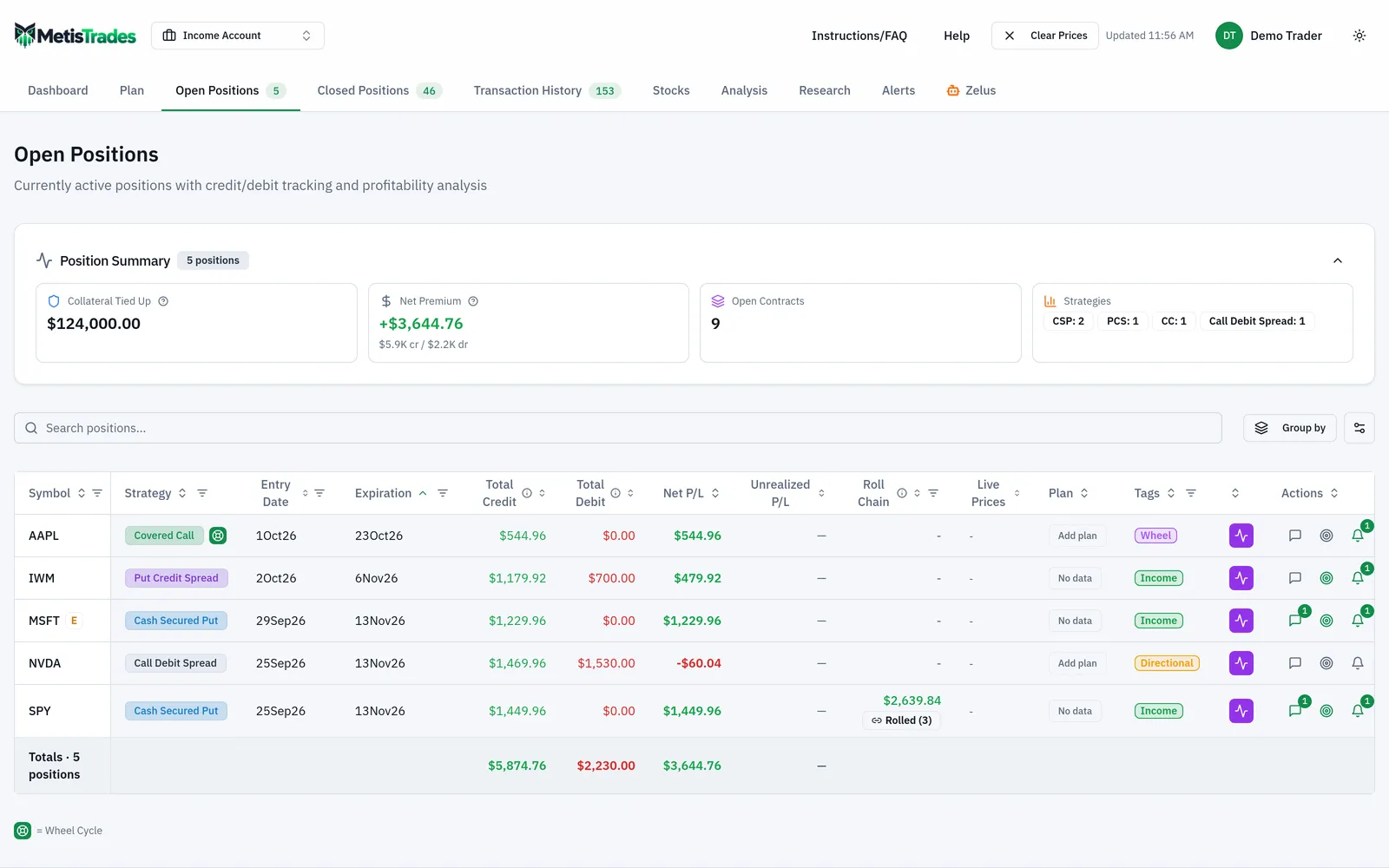
Go to Open Positions and find the XYZ row. Each position row carries a bell icon; selecting it opens the Position Alerts dialog, titled with the symbol and strategy. This is where rules are created, edited, paused, resumed and deleted. Two other places in the app also create rules that then appear in Alerts: an exit plan on Plan → Positions can create alerts at its profit target, max-loss and time-exit levels (Create N alerts after saving the plan, and Manage alerts opens this same dialog with plan-linked rules marked From plan), and a planned trade on Plan → Planned Trades has an Entry alert switch that watches the underlying price for its entry level.
In the screenshot below, look for the bell on the position row — that is the control that opens the dialog for that specific position.
2. Add the position-level profit rule
Select Add New Alert to open New Alert. Choose Position Alert, which combines all eligible open option legs into one return measure. The offered metric is shown as % Return. Under Condition choose Goes Above and enter 50 in Threshold Value. Leave Email notification on if you want a message. Select Create Alert; the dialog shows Creating... while it saves.
Eligible legs must still be open and must have complete strike, expiration, option type and quantity information. If the selected alert type has no eligible legs, the dialog shows a warning instead.
3. Add the two leg rules
Add a second alert, this time Leg Alert. Because the spread has two eligible legs, use Select Leg and pick the short 45 put. Set Alert When to Delta, Condition to Goes Above, and Threshold Value to 0.35. The dialog's defaults are Leg Alert, Delta, Goes Above, a blank threshold and Email notification on, so for this rule you are mostly confirming them.
Add a third: same leg, Days to Expiration, Drops Below, 21. If you would rather any eligible leg be able to fire a rule — useful on a four-leg position — choose Any Leg Alert instead, which calculates the metric for each saved eligible leg and fires as soon as one of them satisfies the rule.
4. Set the email path once
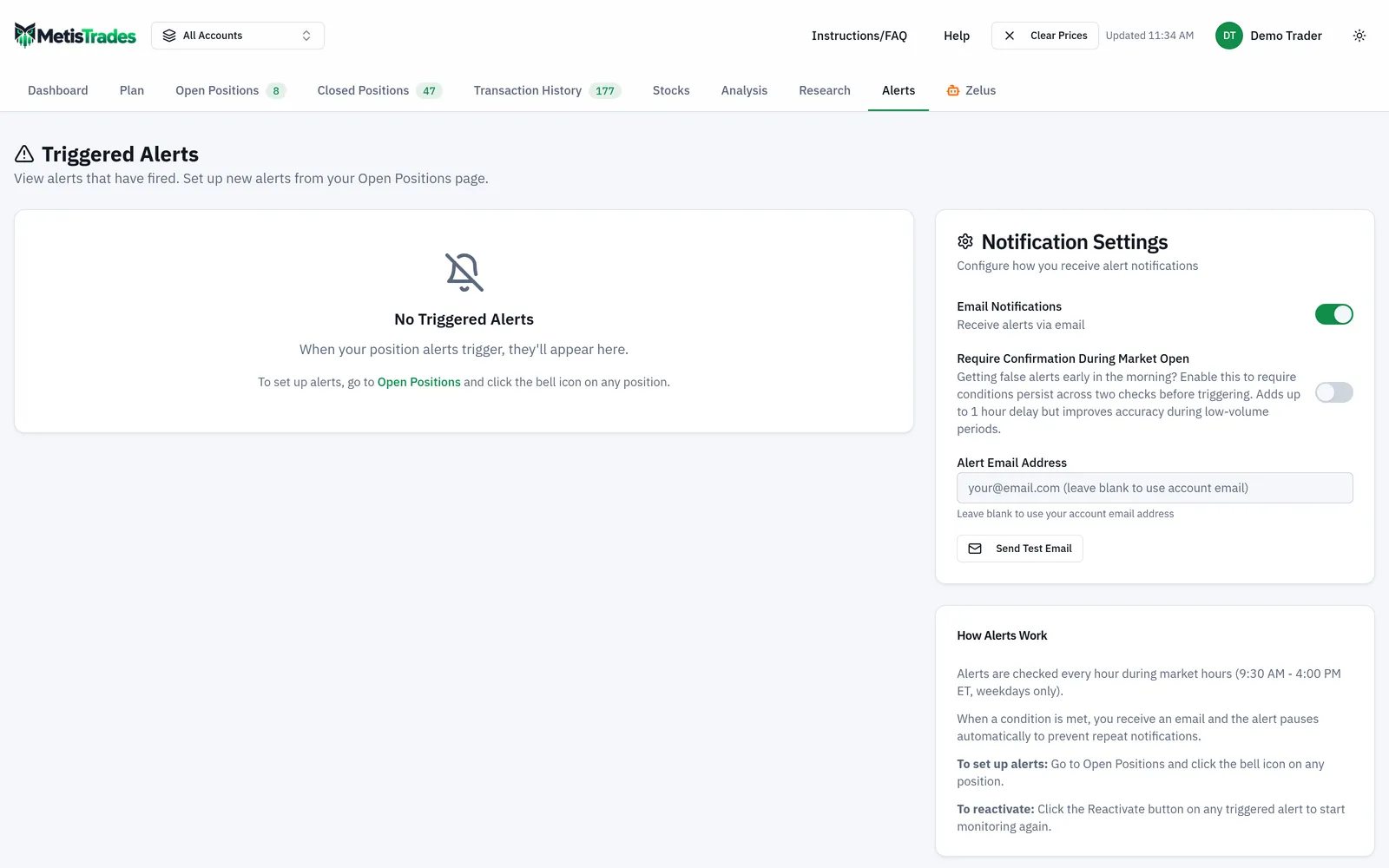
Go to the Alerts tab in the top nav. The Notification Settings card holds Email Notifications (the global on/off for delivery), Require Confirmation During Market Open, Alert Email Address and Send Test Email. An email is prepared only when both the rule's own Email notification switch and the global Email Notifications setting allow it. Leave Alert Email Address blank to use your account email; otherwise the address you type is the destination. Use Send Test Email to confirm the message arrives before you rely on it.
If you turn on Require Confirmation During Market Open, a condition first met during the market-opening warmup period is marked pending rather than fired, and must still qualify at the next check. Because checks are hourly, that can add up to an hour of delay — the trade-off for fewer false alerts during thin opening prints.
5. Let the scheduler work
Saving a rule sends its position identity, account scope, watched leg data, metric, comparison, threshold and email choice to the server. From there the scheduler includes it in hourly scans while the market is open. You do not need to stay on the Alerts page, or keep a tab running.
How to read the results
When the XYZ spread's estimated profit passes $65, the next scan records the checked value and trigger time, changes the rule from active to triggered, creates a fired-history entry, and prepares an email if both switches allow it. The Alerts top-nav tab shows a number: the count of fired history items you have not acknowledged. That count refreshes every five minutes while you are signed in with Alerts access.
The Alerts page is titled Triggered Alerts and presents history as cards rather than a table. Look at the card for XYZ: the symbol (selectable, which opens that position's details), the strategy type and watched leg where available, a Triggered badge, the metric, comparison and threshold, the value that caused the firing, and the date and time. After successful delivery you also see an Emailed badge and sent time; after a failure, Email Failed with error detail.
The next screenshot shows that history list together with the settings card underneath it — read the badges on each card first, then check the email controls below.
Here is what the fired XYZ card does and does not tell you.
It tells you: at a specific scan time, the position-level return measure calculated from the latest available prices for both legs and the stored cost basis was greater than 50. In the scenario, 54.17.
It does not tell you: that you can close for that number. The calculation estimates what closing the legs would receive or cost using delayed quotes; a bid/ask you actually face may be different. It also does not say the value is still above 50 now — it was above 50 at that check. And it does not mean the value stayed there; a condition can become true and false between hourly scans.
Two separate controls act on a fired item, and confusing them is the most common source of surprise:
- Acknowledge marks one fired event as seen. The item stays in history, collapses to a compact row, gains an Acknowledged badge and time, and drops out of the nav badge count. It does not change the rule's status.
- Reactivate returns the underlying rule to active monitoring with the same metric, comparison and threshold. If the rule is already active again, the card shows Active instead.
So after the 54.17% alert, if you decide to hold for 75% instead, acknowledge the history item, open the bell dialog on Open Positions, delete the 50 rule and create a new one at 75 — editing exposes only Condition and Threshold Value, which in this case is enough to change 50 to 75 without deleting anything. Changing the metric or the watched leg does require deleting and recreating.
If you reactivate the 50 rule immediately, it can fire again at the very next check: Goes Above and Drops Below do not require the value to return to the other side first. Crosses is different — it compares the new value with the last successfully checked value and fires only on movement across the threshold between checks.
When you eventually close the XYZ spread, its remaining active rules are not cancelled at the moment you trade. Every scan rebuilds open positions from your transactions; a rule whose saved position is no longer open is changed to expired before quotes are requested. Those rules then appear in the collapsible Expired Alerts section, each row showing the symbol, an Expired badge, the strategy where available, and the rule's metric, comparison and threshold. Clear All deletes the expired rules currently covered by the page or global account filter.
In the all-accounts view, triggered history is grouped first by trading account and then by symbol, and when more than one account has triggered alerts a Filter: row appears with All plus a button per account. That page filter changes only what you see on Alerts; it does not change the global trading-account selection or rewrite any rule's account attachment.
Limits and assumptions
The design assumes hourly sampling is good enough for the decisions you are making. It often is for profit targets and days-to-expiration rules. It is not a tick-level watch: checks run once per hour during the stated market-hours window, and a move that appears and reverses between scans never fires.
Quotes are delayed. A scan compares only the latest available data it receives, so delivery of an alert can lag the market move that produced it.
Data gaps cause skips, not zeros. If option data, implied volatility where needed, or bid-and-ask data is missing or invalid, the server skips that check rather than substituting zero. For a Position Alert, every saved leg needs valid price data — if one leg of the XYZ spread has no usable quote, the combined check is skipped for that scan. An Any Leg Alert evaluates the legs it can price and skips the rest.
Two percentage metrics currently do not save. Extrinsic Value (%) and Unrealized P/L (%) appear in the dialog, but saving either returns Invalid alert data and no rule is created.
Position-level calculations use the legs and cost information saved when the alert was created. Later regrouping or corrected transaction data does not rewrite the saved rule automatically.
Only active rules are checked. Paused, triggered and expired rules do nothing until you explicitly return them to active status.
Account scope matters for expiry. A rule tied to a specific trading account is checked for closure only against open positions in that account — an identical position in another account does not keep it alive. A rule created in the all-accounts view without a specific account is checked against the union of open positions across your accounts.
Everything derived from imported transactions — profit and loss, return, cost basis, strategy and maximum profit — is an estimate. Incomplete imports, transfers, account selection and position grouping can change those figures, and therefore the value an alert compares against your threshold. The scheduler also runs in the published service: if that service or a market-data provider is unavailable, a check or an email can be delayed or missed.
Common mistakes
- Expecting repeated emails while the value stays past your threshold. The first trigger changes the rule to triggered status so it stops notifying; use Reactivate when you want it watched again.
- Treating Acknowledge as a reset. Acknowledging only marks history as seen and clears the nav badge; reactivation is the separate control that resumes checking.
- Choosing a percentage metric that will not save. Use Extrinsic Value ($) or Unrealized P/L ($), since the two percent versions return Invalid alert data on save.
- Setting the threshold to the exact number you want to hear about. Equality never triggers Goes Above or Drops Below, so set 49.9 if you want to be told at 50.
- Using Crosses and waiting for the first check to fire. There is no prior value to compare on the first sample; pick Goes Above or Drops Below if the very first reading should count.
- Turning on the rule's email switch but leaving the global one off. Check that Email Notifications is enabled in Notification Settings, then use Send Test Email to confirm the address works.
- Trying to change a rule's metric by editing it. Editing exposes only Condition and Threshold Value; delete the rule and create a new one to change the metric or the watched leg.
Related guides and help pages
Related guides
- Plan, Track, Optimize: a complete tour of MetisTrades
- Tracking the Wheel Strategy: Premium, Share Basis and the Cycle Result
- Understanding Roll Chains: Tracking a Rolled Option as One Trade
- Tracking covered-call income by symbol
- Tracking Poor Man's Covered Calls with PMCC Campaigns
- Tracking assignments and exercises: shares, basis and what happened next