Exporting, inspecting and resetting account data in MetisTrades
How to take a re-importable export of one trading account, review the manual adjustments you have made to it, and reset or clear that account without touching the others.
What you are setting up and why
Everything MetisTrades shows you about your trading — strategy labels, position groups, roll chains, wheel cycles, profit and loss — is built from the transactions you imported into a trading account, which is simply a named container that keeps one broker account's activity separate from another's. On top of those transactions sit your manual adjustments: the comments you wrote, the strategy labels you corrected, the positions you split or grouped by hand, and the buying-power figures you entered.
This guide covers three jobs that live on the same card in Account Settings. First, taking an export of one account's data — including a format you can import again later. Second, looking at how many manual adjustments that account carries, so you know what you would lose. Third, resetting adjustments or clearing uploaded files for that one account when you want to start its history over.
The reason to do these in that order is simple: resets and deletions in this card cannot be undone. An export first means you still have the transaction data in a file, even if you clear the account.
One scoping rule matters throughout. The account you choose at the top of the card controls almost everything below it. Delete All in Upload History removes every file listed for that account and leaves your other trading accounts alone. There is no action here that clears every account at once.
Before you start
- A Pro account with active access. This card is for Pro users with active access. Signed-in users without active access can reach Account Settings, but the card is hidden.
- At least one trading account. If you have none, the card shows No Trading Accounts and points you to create one above.
- Transactions in your profile. Export buttons are unavailable when your profile has no transactions.
- A decision about which export you need. Transaction Export and Grouped Transaction Export are marked Re-importable. Position Analysis Export is marked Analysis only and cannot be re-imported.
- A decision about scope of any reset. Reset All removes every adjustment category at once. Use Individual category reset options if you only want to clear one.
- The original broker files, if you intend to delete uploads and import them again. Deleted uploads cannot be restored; the only way to get their transactions back is to upload the files again.
Step by step
1. Open the card
Open your user menu, choose Account Settings, and select Data & Uploads in the section bar. The route is /account/data. If the current app-wide account is an individual account, the card prefers that account; otherwise it uses the first available account.
2. Choose the account you are working on
Use Select account at the top of the card. Confirm the name before you touch anything below it, because the selector governs the exports, the adjustment counts, the duplicate scan, Upload History and Removed Transactions. Changing it also clears any skipped-rows report left from an upload into the previously selected account.
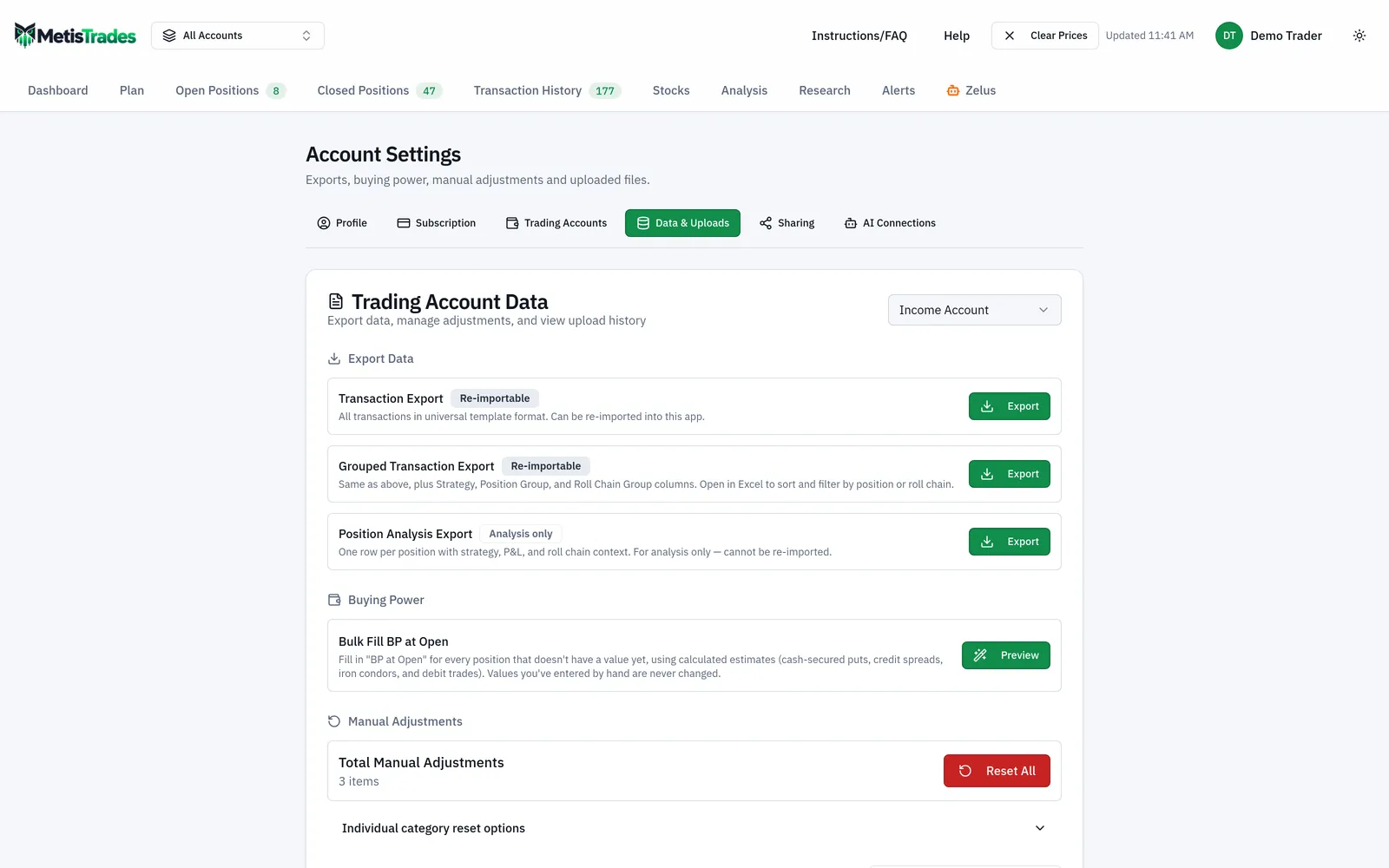
Below is the card itself. Look at the account name at the top first, then the three export buttons, then the manual-adjustment total — those are the three areas this guide uses, and they all follow the account you selected.
3. Take a re-importable export
In Export Data, choose one of the three and select its Export button:
| Export | What it contains | Can it be imported again? |
|---|---|---|
| Transaction Export | All transactions in universal template format | Re-importable |
| Grouped Transaction Export | The same transaction data plus Strategy, Position Group and Roll Chain Group columns | Re-importable |
| Position Analysis Export | One row per position with strategy, P&L and roll-chain context | Analysis only |
If your plan is to clear the account and rebuild it, take Grouped Transaction Export: it carries the grouping and roll-chain columns alongside the raw rows, so you have a record of how the positions were organised as well as what was traded.
4. Inspect the manual adjustments before you change them
The Manual Adjustments section shows Total Manual Adjustments and the number of adjustment items. That total counts transaction comments, position comments, strategy overrides, position splits, manual groupings, roll-chain overrides, wheel-cycle overrides and buying-power entries.
Open Individual category reset options to see the categories listed separately. A category's reset control is unavailable when its count is zero, so the list doubles as an inventory of what you have actually customised in this account.
5. Reset one category, or all of them
To clear a single category, use its control and confirm. Each one names what it does: Clear All Strategy Overrides? reverts every manual strategy reclassification to the auto-detected strategy (confirm with Clear Overrides); Clear All Position Splits? returns split positions to their original groupings (Clear Splits); Clear All Manual Groupings? returns manually grouped positions to auto-detected groupings (Clear Groupings); Clear All Buying Power Entries? permanently deletes every manually entered BP at Open value (Clear Entries). Every individual reset reports the number of affected items and warns that it cannot be undone.
To clear everything, select Reset All, which opens Reset All Manual Adjustments?. The confirmation says the reset permanently deletes comments, strategy overrides, position splits and manual groupings while leaving transaction data unaffected. Confirm with Reset All Adjustments only when you intend to remove all categories.
6. If you also want to clear the account's imported data
Go to Upload History. Every upload row has a checkbox, and a bar above the list shows a select-all checkbox with a running N of M selected count. Use Delete Selected (N) for particular files, or Delete All for every file listed for the selected account. Both ask for one confirmation that names the trading account being cleared and states how many files and how many transactions will be permanently removed. Read that account name in the dialog; it is your last chance to catch a wrong selection.
Check it worked
After an export. Open the downloaded file. A Transaction Export should hold your transactions in universal template format; a Grouped Transaction Export should additionally carry the Strategy, Position Group and Roll Chain Group columns. If the export buttons were unavailable, your profile has no transactions to export.
After a category reset. Reopen Individual category reset options. The category you cleared should now count zero items, and its reset control should be unavailable. Total Manual Adjustments should have dropped by the number the confirmation reported. Elsewhere in the app, cleared strategy overrides show as the auto-detected strategy again, and cleared splits and groupings show their original or auto-detected arrangement.
After Reset All. Total Manual Adjustments should read zero items while your positions and transactions remain — the confirmation states transaction data is not affected. If transactions have vanished too, you used Upload History rather than Manual Adjustments.
After deleting uploads. The result message says how many files were deleted and names any file that could not be deleted. With every file gone, the page says No uploads yet for this account. Select a broker above and upload your trading data to get started. Your selection is cleared after a delete, and whenever you change the account at the top of the card.
The first sign something went wrong is a confirmation dialog naming an account you did not mean to work on, or a count far larger than you expected. Cancel at that point. After confirming, there is nothing to undo.
Troubleshooting and common questions
The export buttons are greyed out
Export buttons are unavailable when your profile has no transactions. Import activity first.
I cannot find the card at all
This card is for Pro users with active access. Signed-in users without active access can reach Account Settings, but the card is hidden. If you have no trading accounts, the card shows No Trading Accounts and directs you to create one above.
Does Reset All delete my transactions?
No. Its confirmation explicitly says transaction data is not affected, though it removes the manual-adjustment categories.
Does clearing Strategy Overrides delete positions?
No. It returns reclassified positions to their auto-detected strategies. Clearing Position Splits likewise restores split positions to their original groupings.
I deleted an upload, imported the same file again, and some rows did not come back
Those rows are probably on Removed Transactions, the per-account list of transactions you deleted. While a row is listed, re-importing the same file and future brokerage syncs skip it. Deleting one upload, using Delete All, or disconnecting a brokerage does not clear the list; resetting all of the account's data does. Use Allow again on a row, then upload the file again or sync the connection — the list records identity, not a copy of the row, so it will not restore the row by itself.
My upload said Upload Successful with Processed 0 transactions
That is the app telling you nothing was added. While the account switcher is on All Accounts, the uploader still imports into the account chosen on this card, but a file whose rows look like duplicates is not imported and the review prompts are not raised. Select a specific account and upload again for the full flow.
Will Bulk Fill BP at Open overwrite values I typed in?
No. Positions that already have a value are counted as Already have a value (untouched). The Preview dialog also reports Will be filled with estimates, Total estimated buying power and No reliable estimate (left blank) before you choose Fill N Positions. Covered calls, naked short options, calendars and stock positions are left blank because their margin requirements are broker-specific, and bulk-filled buying power is calculated rather than supplied by your broker.
Can I safely delete every likely duplicate the scan finds?
Review each match first. Scan for Duplicates presents likely duplicates with a match percentage and reasons, the confirmations tell you to make sure the matched row being kept is correct, and deletion is permanent. If the scan is clear, the card says No likely duplicates found in this account.
Does Delete All clear my other trading accounts?
No. Delete All removes every file listed for the selected trading account only. Files uploaded into your other trading accounts are left alone.
My import produced a skipped-rows report
It means some statement rows could not be safely interpreted and the imported activity may be incomplete. The report lists each skipped row's reason, date, statement section, row type, amount and original description, so you can judge what is missing before you rely on the numbers. Remember that anything derived from imported transactions — P&L, grouping context, buying-power totals, duplicate comparisons — is an estimate.
Related guides and help pages
Related guides
- Getting Your Trades In: File Imports and Brokerage Sync
- Uploading your broker's transaction file, with AI-assisted mapping for any format
- Plan, Track, Optimize: a complete tour of MetisTrades
- Getting Started with MetisTrades: From Empty Account to Tracked Portfolio
- Creating an account and signing in to MetisTrades
- What You Can Use Without Signing Up, and What Pro Adds