Creating an account and signing in to MetisTrades
How to start an account, choose between email-and-password and NOSTR sign-in, verify an emailed link, accept the Terms, and keep the transactions you loaded before signing in.
What you are setting up and why
You are setting up two things: an account, and at least one reliable way to get back into it. MetisTrades offers two authentication methods — Email (address and password) and NOSTR (a signature approved in a browser extension). You can have one or both linked to the same account.
The difference this makes is about what gets kept. If you load transactions without signing in, that data stays in the browser tab's session storage and is discarded when the tab closes. Once you are signed in, the service stores transactions and related trading details, comments, notes, tags, manual adjustments, alerts and broker-reported balances against your account. The Sign In dialog puts it simply: signing in gives you access to your analysis history.
Recovery matters as much as sign-in. If email is your only linked method and you never set a password, you will be routed through Forgot Password to create one. If NOSTR is your only method, you need the extension holding that key. Deciding this now, rather than in six months, is the point of this setup.
One more thing you will be asked to do: accept the Terms of Service. The prompt summarises that the site is for educational purposes only, is not financial advice, leaves you responsible for your own decisions, and is used at your own risk.
Before you start
- An inbox you can open straight away. Login links expire after 15 minutes, so do this when you can check mail within a few minutes.
- A decision on sign-in method. Email and password works anywhere. NOSTR requires a compatible browser extension on the device you are using. Linking both gives you a second way in.
- A NOSTR extension, if you want that method. The app names nos2x, Alby and Flamingo as examples; the Sign In dialog links to nos2x (Chrome/Firefox) and Alby (Chrome/Firefox).
- A password that meets all four requirements: at least 8 characters, one uppercase letter, one lowercase letter, one number.
- A plan for anything you already loaded anonymously. If you have been using the app in a tab without an account, you will be asked after sign-in whether to save those transactions or discard them.
- A few minutes to read the Terms. You can open Terms of Service from the prompt; it opens in a new tab. The Terms include binding individual arbitration and a class-action waiver, with a stated 30-day opt-out period after first acceptance.
Step by step
1. Start from Join now
You cannot create an account inside the Sign In dialog. If you open Sign In and have no account, choose Join now. That opens the MetisTrades Options Tracking marketing page, where the signup and checkout flow begins. Payment details are entered with Stripe; MetisTrades stores subscription identifiers, status and end date rather than your card number. Eligible users can cancel through the billing portal during the 7-day trial without a charge, with access continuing through the trial's end.
2. Accept the Terms of Service
The app can present a required Terms of Service dialog. Read the summary, open the full document if you want it, then choose I Agree to continue. The prompt cannot be dismissed by clicking outside it or pressing Escape — an explicit agreement is what gets recorded.
3. Sign in with email and password
Open the Sign In dialog and stay on the Email tab. Enter your address in Email and your password in Password, using the eye control to show or hide what you typed, then choose Sign In. If the account exists but has no password yet, the error directs you to Forgot Password to set one. If no account matches the address, the dialog offers Join now instead.
4. Or sign in with NOSTR
Choose the NOSTR tab. The dialog shows Detecting NOSTR extension... while it looks for one. When it finds one it says NOSTR extension detected! Click below to sign in securely. Choose Sign in with NOSTR and approve the signature request in your extension. Your keys never leave your device; only the signature is verified. If no extension is found, the dialog tells you one is needed and links to nos2x and Alby.
5. Complete any emailed link
An emailed verification link opens Email Verification. While the token is checked the page says Verifying your login link..., then Successfully signed in! before redirecting; you can also choose Continue to App. If the link was for adding an email to an account you are already signed in to, success reads Email linked successfully! instead.
6. Decide what happens to anonymous session data
If you loaded transactions before signing in, the app opens Save Your Session Data? and shows how many transactions came from before sign-in. Choose Yes, Save to My Account to add them to the selected account with automatic deduplication, or No, Discard Data to leave that browser-session data unsaved.
7. Finish the account on Profile
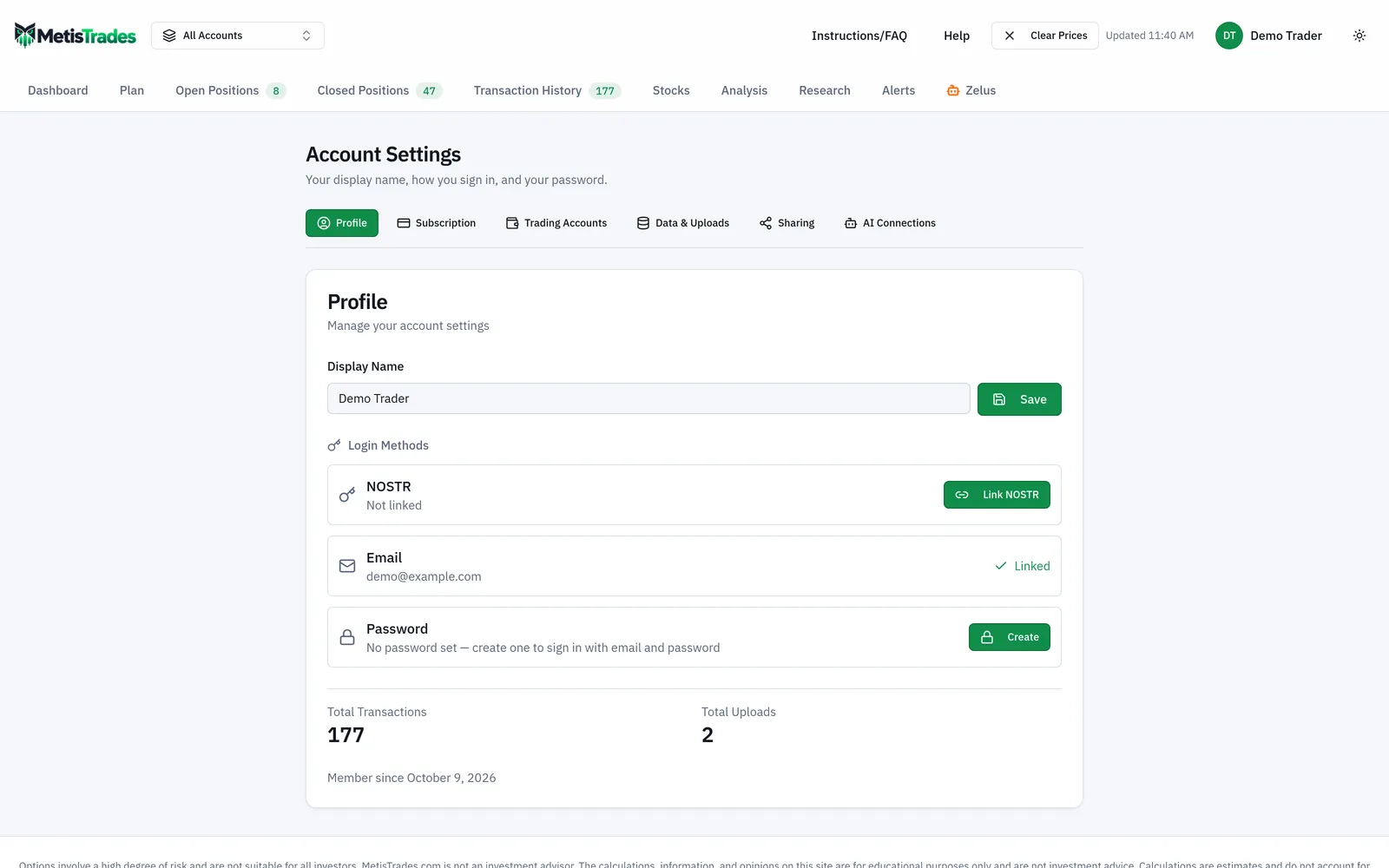
Open the user menu in the top right, choose Account Settings, and stay on Profile in the section bar — Account Settings opens there. Set a Display Name (up to 100 characters, not blank) and select Save. The screenshot below shows the rows worth checking: the two Login Methods and, underneath them, the Password row.
8. Add the second sign-in method
If Email shows Not linked, select Link Email, enter an address in Email Address and select Send Verification Link. The dialog confirms Verification email sent! — linking is not finished until you click the link in your inbox. If NOSTR shows Not linked, select Link NOSTR and approve in your extension.
9. Set a password if you do not have one
The Password row appears only when an email is linked. If it reads No password set — create one to sign in with email and password, choose Create; that dialog asks only for the new password and confirmation. If you already have one, Change opens a dialog asking for Current Password, New Password and Confirm New Password. Either way the four requirements apply, and the dialog reports Passwords match or Passwords do not match.
Check it worked
Go back to Account Settings → Profile. A correct result looks like this:
- The method you set up shows Linked. For NOSTR, the row also shows a shortened public identifier.
- If email is linked, the row shows your address, and the Password row is present.
- The bottom of the card shows Total Transactions and Total Uploads, plus Member since and the date when a creation date is available.
- If you chose Yes, Save to My Account, the transaction count should reflect the records you kept. Note that this card reports counts only; it does not inspect or reconcile what is inside those records.
The first sign that something went wrong: Account Settings shows Sign In Required instead of the Profile card — you are not actually signed in. The second is an email row still showing Not linked after you requested a verification email. The card does not display a separate verified or unverified badge, so Linked is the only confirmation that the emailed link was used.
A last check worth doing while you still remember the password: sign out, sign back in with the method you expect to use most, and confirm it works.
Troubleshooting and common questions
The dialog says there is no account for my email
No account matches that address. The dialog offers Join now, which opens the Options Tracking page where signup begins. Check for a typo or a second address first.
I have an account but no password
The email form requires a password, so the error points you to Forgot Password. Choose Forgot password?, enter your address and select Send Reset Link, then set a password from the emailed link.
The reset confirmation does not say whether my email exists
That is deliberate. The Check your inbox! message says that if an account exists for that address you will receive a reset link, and suggests checking spam or trying again in a few minutes. Use Back to Sign In to return to the login form.
My link says "Invalid reset link. Please request a new one."
The reset action needs the token carried in the email. That message appears when the token is absent. Request a fresh reset email and open the newest link.
My login link stopped working
The Email Verification failure guidance says login links expire after 15 minutes and asks you to request a new one.
The NOSTR tab says I need an extension
No compatible extension was detected in this browser. Install one — the dialog links to nos2x (Chrome/Firefox) and Alby (Chrome/Firefox), and the Profile card also names Flamingo — then reload and try again. NOSTR sign-in also requires an existing account associated with that key.
I see "Account Already Exists" when linking a method
That login method already belongs to a different account. The dialog offers to merge: all transactions from the other account move to the current one, comments and uploads transfer, the other account is deleted, and either login method works afterward. Select Merge Accounts to confirm or Cancel to leave both unchanged. No undo control is shown, so read the explanation before confirming.
Can I remove a sign-in method later?
Only when the other method is also linked. The unlink control appears in that case, and the Unlink NOSTR? or Unlink Email? confirmation explains which login will remain available.
I discarded my anonymous transactions by mistake
Choosing No, Discard Data does not save those transactions to your account, and signed-out uploads live only in the browser tab's session storage. Re-import the file. Uploaded files are parsed in memory and not retained; the extracted transactions, the original file name and the imported-row count are stored so you can review or undo an import.
Why can I not close the Terms prompt?
It requires an explicit I Agree and blocks outside-click and Escape dismissal, because the acceptance is recorded with a timestamp.
What happens to Profile if my subscription ends?
The Profile card stays available, so you can still manage your display name and sign-in methods. Subscriptions are cancelled through the billing portal in Account Settings, and paid access continues through the period already paid for. For full deletion of your account and its data, the legal documents direct you to contact us; the Privacy Policy says such requests are ordinarily processed within 30 days.
Finally, remember that account and authentication data are separate from market data. Signing in does not change the fact that quotes shown elsewhere in the app are delayed, and anything calculated from imported transactions is an estimate.
Related guides and help pages
Related guides
- A Tour of Account Settings in MetisTrades
- Plan, Track, Optimize: a complete tour of MetisTrades
- Getting Your Trades In: File Imports and Brokerage Sync
- Getting Started with MetisTrades: From Empty Account to Tracked Portfolio
- What You Can Use Without Signing Up, and What Pro Adds
- Setting Up Trading Accounts: One Container per Broker Portfolio