Setting Up Trading Accounts: One Container per Broker Portfolio
Create one trading account for each brokerage portfolio so positions, rolls and wheel cycles never get matched across accounts. Walk through the Trading Accounts card, naming, ordering and checking the result.

What you are setting up and why
A trading account in MetisTrades is a container. It holds one portfolio's transactions, positions, cash, comments, tags, overrides and account-specific settings. It usually stands for one brokerage account: a taxable account at one broker, an IRA at another.
The container matters because of what MetisTrades builds on top of it. Option positions and FIFO matching, manual groupings and leg splits, roll chains, wheel-cycle detection, stock holdings, tags and notes, uploaded files, brokerage links and broker cash snapshots are all resolved per trading account. That boundary is the point. If you own 100 shares of the same stock in two brokerage accounts and sell a call in each, separate containers stop MetisTrades from matching one account's short call against the other account's assignment. A cash-secured put assigned in your IRA cannot be linked to a covered call in your taxable account just because the ticker is the same.
Once you have more than one account, the account switcher also offers All Accounts. That is a combined reading scope, not another account. MetisTrades loads the transactions across the scope, builds positions separately for each account, then concatenates the results — so the combined summary spans everything without losing track of which account owns each row.
Some actions still need one account. Adding or editing a transaction, grouping transactions as a position, CSV upload, broker transaction sync and creating a public share link all need an unambiguous destination, so they are tied to a specific account rather than All Accounts. Setting the containers up properly now means you are not untangling merged activity later.
Before you start
- Access. Trading-account management is a Pro feature. Active and trialing subscribers, lifetime users, and legacy lifetime users have access. Signed-in users without active access can still reach Account Settings, but the Trading Accounts card is hidden, and the switcher hides its account-management controls too.
- A list of the brokerage portfolios you want to track. One trading account per brokerage portfolio is the rule of thumb. Two accounts at the same brokerage — a taxable and a Roth, say — should be two trading accounts.
- Names you will still recognise in six months. The dialog's example is "Robinhood IRA". Name by broker plus account type, not by what you happen to be trading this month.
- A decision on descriptions. The Description (optional) field exists to separate accounts with similar names. The dialog's example is "Tax-advantaged retirement account."
- Know that the broker field is a label. Choosing a broker on the account does not import anything. Importing files and connecting a brokerage are separate actions.
The Broker choices are Robinhood, Schwab, TD Ameritrade, Fidelity, E*TRADE, Webull, Tastytrade, Interactive Brokers, and Other.
Step by step
1. Open the Trading Accounts card
Open your user menu, choose Account Settings, then select Trading Accounts in the section bar. That section holds this card and Roll Detection. While accounts are being fetched the card shows Loading accounts...; if you have none yet it shows No trading accounts yet. Create one to get started.
Look at the card header text — Manage your trading accounts to track positions separately by broker — and then at the row layout: each account shows its name, broker type, optional description, the Default badge where it applies, a drag handle, an edit control, and a delete control once more than one account exists.
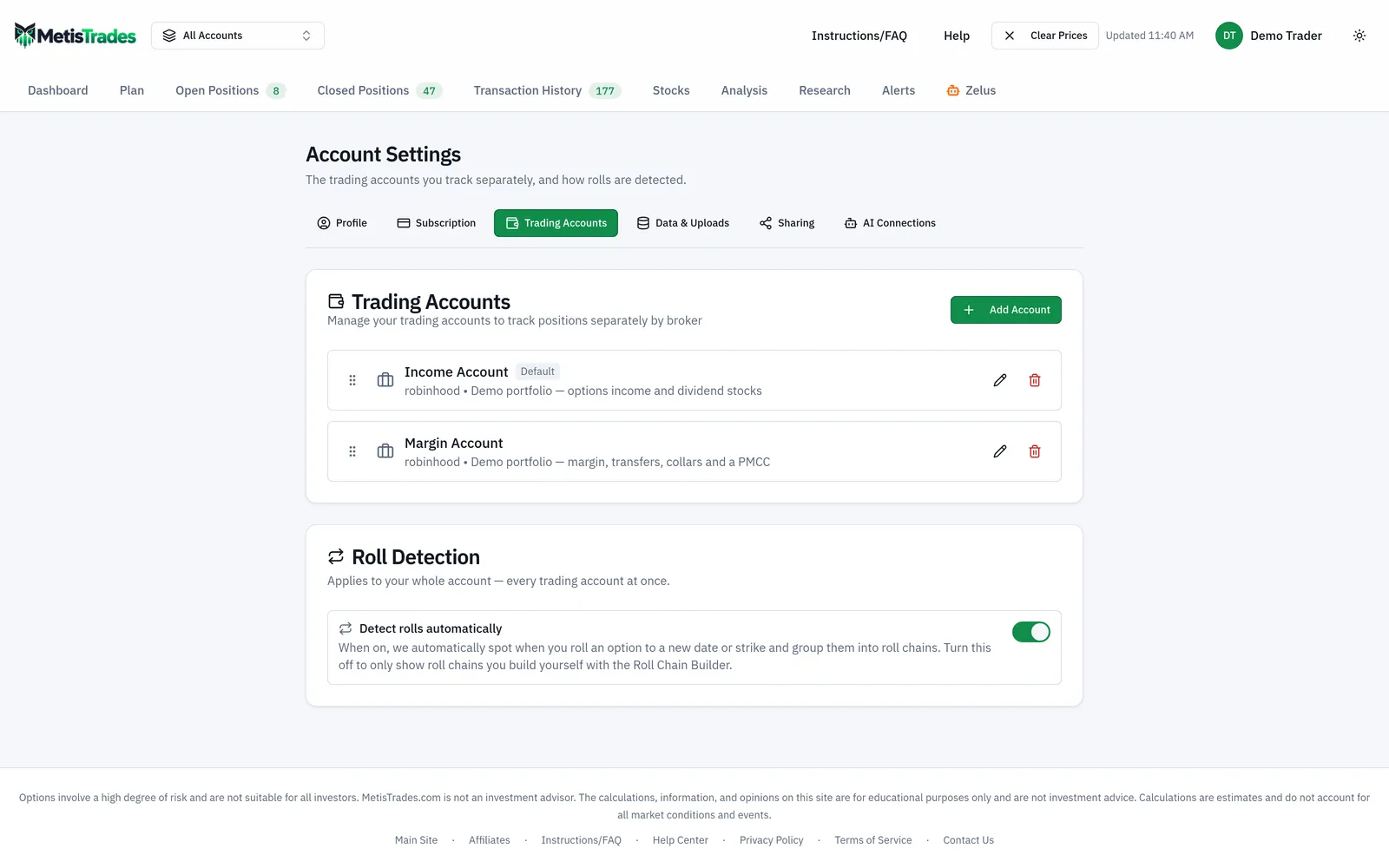
2. Create the first account
Select Add Account to open Create Trading Account. Fill in three fields:
| Field | What it does |
|---|---|
| Account Name | How the account appears in this list and in the account switcher. Required — the Create button stays unavailable until the account has a name. |
| Broker | The brokerage label for the account. It is set to Robinhood to begin with. It is a label only; it does not import or move transactions. |
| Description (optional) | Free text to tell similar accounts apart in the list. |
Choose Create to save it, or Cancel to close the dialog without creating anything. The newly created account becomes the selected account.
3. Repeat for every brokerage portfolio
Add one account for each portfolio you intend to track. Two accounts can use the same broker type — give them distinct names or descriptions so you can tell them apart in the list and in the switcher. You can also open the switcher and choose Add Account there; it opens the same kind of dialog.
4. Put the accounts in the order you want to read them
Use the drag handle labelled for the account you want to move and drop it in its new place. The rows update immediately while the new order is saved, and that becomes the order of the account list. Reordering is presentation only: it does not combine accounts or move transactions between them.
5. Fix any details you got wrong
Use the edit control on a row to open Edit Trading Account. The existing Account Name, Broker and Description (optional) are loaded in. Choose Save to keep the changes or Cancel to leave the account unchanged. Editing these details does not present a transaction-deletion warning, because nothing is being deleted.
Check it worked
Start on the Trading Accounts card itself. Every portfolio you meant to track should have its own row showing the name you chose, the broker type, and the description if you entered one. One row carries the Default badge. Once there are at least two accounts, each row also shows a delete control.
Next open the account switcher in the desktop header — its accessible label is Select a trading account. It should show Trading Accounts, each account name, the (default) marker, and, when more than one account exists, All Accounts with the number of accounts in the label. These are the same accounts you just created; the switcher and the settings card list the same set.
Then select All Accounts and open Open Positions, Closed Positions or Transaction History. In All Accounts mode those pages add a trading-account column that identifies the owning account for each row, and Transaction History makes Trading Account available as a grouping choice. If you see the same symbol appear more than once, that is the partition working — the symbol exists in several accounts.
The first sign something went wrong is the opposite: activity from two brokers sitting under one account name with no way to tell them apart. Another early signal is the message Could not save order after a drag, which means the new sequence was not saved.
Troubleshooting and common questions
Why can I not see the Trading Accounts card?
It is for Pro users with active access. Signed-in users without active access can reach Account Settings, but the card is hidden, and the switcher also restricts creating, editing and deleting accounts to users with active access.
Why is there no delete control on my account?
The delete control appears only when at least two accounts exist, so the sole remaining trading account cannot be deleted from this list.
What exactly is lost if I delete an account?
Selecting delete opens Delete Trading Account?. The warning names the account and states that deletion permanently removes the account and all associated data, including transactions, positions, comments and tags. Choose Delete Account to continue or Cancel to keep it. Deletion cannot be undone.
Does changing the broker type move or re-import transactions?
No. The edit dialog changes the account details. It does not offer an import or transfer action.
Why is Group as Position disabled?
A manual group must belong to one account, so grouping is disabled in All Accounts mode. The explanation reads Select a specific account to group transactions. The same reasoning applies to Add Transaction and to row edit and delete actions, which appear only in a specific-account view.
Can I upload a CSV while All Accounts is selected?
The Trading Account Data uploader in Account Settings still works and the file lands in the account chosen by that section's own picker, but it skips the review steps: no duplicate review, no AI mapping review, and no prompt when a file uploaded as Other broker (AI-assisted) turns out to match a supported layout. A file that needs one of those steps is not imported — and when the duplicate review was what it needed, the upload still reports Upload Successful with Processed 0 transactions. That count is the only sign nothing was added. Select the specific account and upload again.
Why is the sync control missing in All Accounts mode?
Broker transaction sync is account-specific. Each trading account links to one brokerage account, and the link remembers which brokerage connection it came through, so two trading accounts can be fed by two different logins at the same brokerage. The header sync control is hidden in All Accounts mode even if one of the accounts is linked.
Which account is selected when I come back tomorrow?
The account selection is remembered in your browser. If the saved selection is not valid, MetisTrades falls back to the default account, then to the first account.
Does a public share link expose all my accounts?
No. Public sharing is account-specific — you choose an account before choosing Create Link, and a share viewer cannot switch into your other accounts.
Will the numbers be exact once everything is in place?
Figures derived from imported transactions are estimates and depend on the completeness and accuracy of the data assigned to each account. Quotes in MetisTrades are delayed, so position values and profit-and-loss figures can be stale. Tax figures are estimates from your imported transactions, not a substitute for your broker's 1099-B.
Related guides and help pages
Related guides
- Tracking Several Brokerage Accounts Without Mixing Them Up
- Plan, Track, Optimize: a complete tour of MetisTrades
- Getting Your Trades In: File Imports and Brokerage Sync
- Getting Started with MetisTrades: From Empty Account to Tracked Portfolio
- Creating an account and signing in to MetisTrades
- What You Can Use Without Signing Up, and What Pro Adds