A Tour of Account Settings in MetisTrades
Account Settings holds your profile, subscription, trading accounts, brokerage connections, data and uploads, sharing and AI connections. Here is what each section does and how to check your setup is in order.
What you are setting up and why
Account Settings is the signed-in area where you manage your account and the data attached to it. Almost everything else in MetisTrades leans on choices you make here: which trading accounts your imported transactions land in, whether option rolls are linked together automatically, which brokerages sync activity, and who can see a read-only view of your portfolio.
The page is split into sections by a section bar under the page title: Profile, Subscription, Trading Accounts, Brokerage Connections, Data & Uploads, Sharing and AI Connections. One section is shown at a time, and each has its own address, so you can bookmark the one you use most.
Two things are worth knowing before you start clicking. First, Account Settings is part of Pro, and sections you cannot use are left out of the bar rather than shown empty — so two people may not see the same set. Second, the page mixes global information with account-specific data: the totals on Profile cover your whole profile, while Trading Account Data in Data & Uploads works on the trading account you have selected.
The goal of this tour is that you can open each section, know what it controls, and know where to go back to when something downstream looks wrong.
Before you start
- A signed-in account. If you are not signed in, the page shows Sign In Required, with a Sign In button that opens the login window and a Start Free Trial link.
- Active access. The app treats an active subscription, a trial, unexpired access after cancellation, and lifetime access as active access. Trading Accounts, Data & Uploads, Sharing and AI Connections all require it.
- A decision about login methods. Profile shows NOSTR and Email as Linked or Not linked. Linking NOSTR needs a compatible browser extension — the app names nos2x, Alby or Flamingo as examples. Password controls appear only when an email is linked.
- A plan for how many trading accounts you want. A trading account is a container that keeps positions and data organized by broker. Decide whether you want one per brokerage account before you start importing, because that choice shapes every later view.
- A decision on roll detection. Detect rolls automatically applies across your whole account, not per trading account. Leave it on if you want MetisTrades to identify option rolls for you automatically.
Step by step
1. Open Account Settings
Use the user menu in the top right, then Account Settings. The route is /account, which opens on Profile. You can also go straight to a section: /account/profile, /account/billing, /account/accounts, /account/brokerages, /account/data, /account/sharing or /account/ai-connections. The section you are in stays in the address bar.
Look at the section bar under the page title first. It tells you which sections are available to you — if one is missing, that is the signal to check your access rather than to hunt for a hidden menu.
2. Set your display name and login methods in Profile
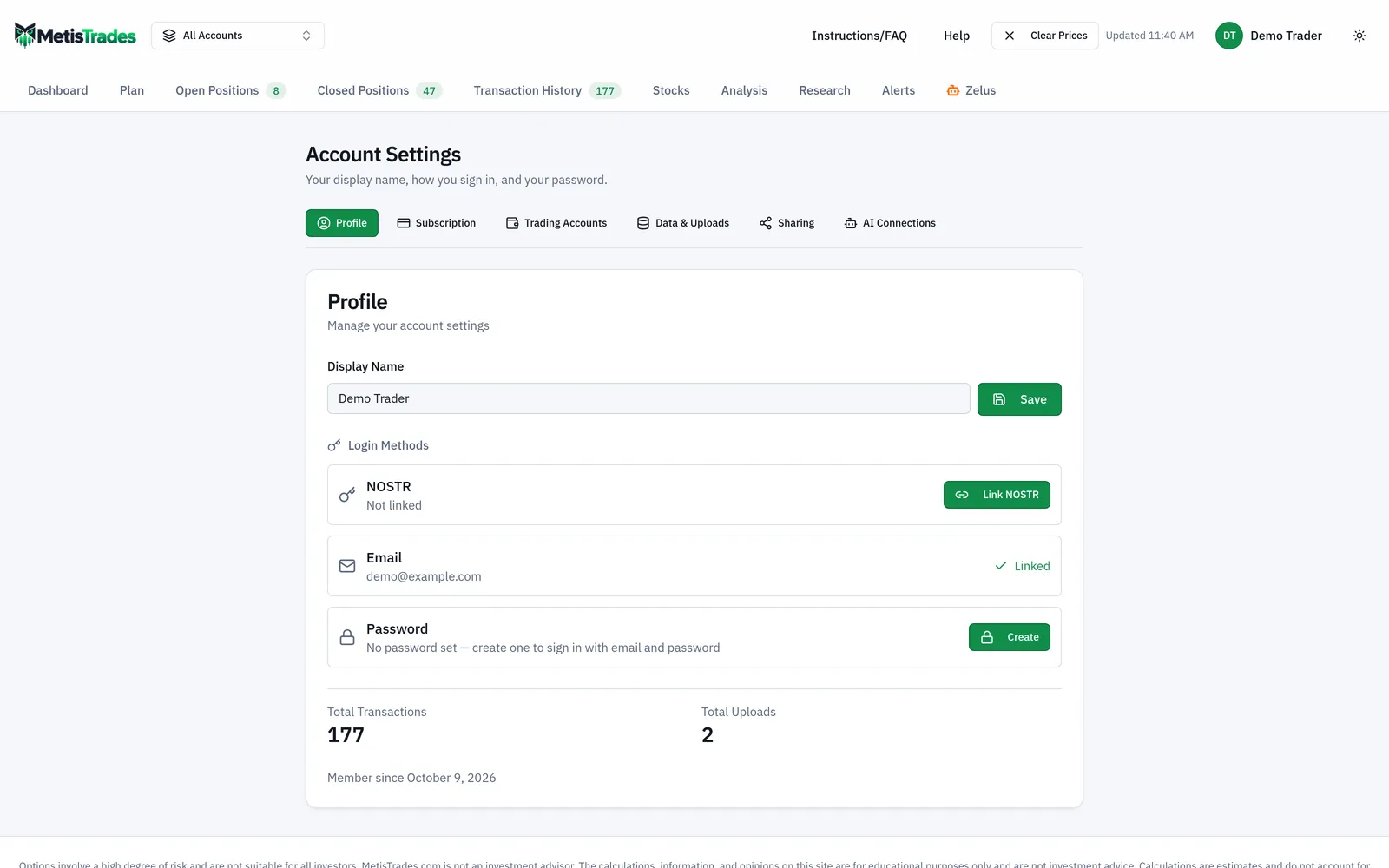
Enter a name in Display Name (up to 100 characters; the placeholder reads Enter a display name) and select Save. Save is unavailable while saving, or when the field holds only blank space.
Under Login Methods, the NOSTR and Email rows each show Linked or Not linked. To add email, select Link Email, enter an address under Email Address, then select Send Verification Link. The dialog shows Verification email sent! — linking is not finished until you click the link in your inbox and the row reads Linked. To add NOSTR, select Link NOSTR with your extension installed.
If email is linked, a Password row appears. With no password set it reads No password set — create one to sign in with email and password and offers Create; with one set it offers Change. A new password must meet all four displayed requirements: at least 8 characters, one uppercase letter, one lowercase letter, and one number. Create Password does not ask for a current password; Change Password does.
Unlink controls only appear when the other method is also linked, so the card will not offer to remove your only displayed login method.
3. Confirm your subscription in Subscription & Billing
This section shows Subscription Status, and depending on your account may also show Subscribe, an Access until date, Manage Billing, Billing Portal or Lifetime Access. If active access has ended, a Subscription Required card appears above the section bar with Resubscribe Now and Export My Data, and the gated sections drop out of the bar.
4. Create trading accounts and choose roll detection
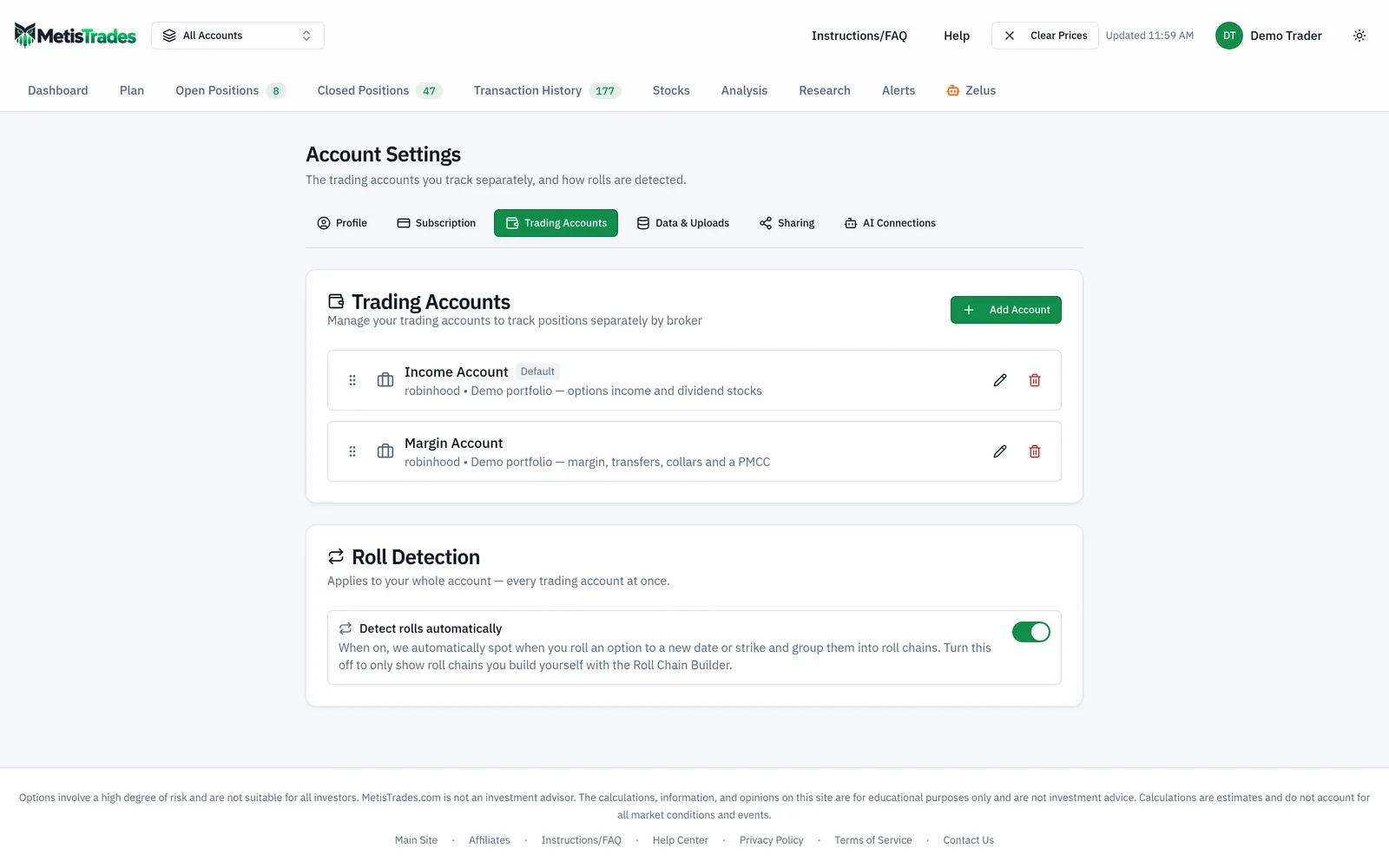
The Trading Accounts section holds two cards. Trading Accounts lets you create and manage separate accounts for tracking positions by broker. Roll Detection sits below it, with the Detect rolls automatically switch that controls whether the app automatically identifies option rolls for your whole account.
In the view below, check two things: that each broker you trade with has its own named account, and that the roll detection switch is in the state you want before you import history.
5. Connect a brokerage, if the section is there
Brokerage Connections is used to connect brokerage accounts and sync transactions. It appears only with active access, while the brokerage-connection feature is switched on for the site. Brokerage connections are part of Pro and available to everyone with Pro. Note that brokerage sync does not import every possible transaction type; the section lists known exclusions when it is available.
6. Review Data & Uploads
The Data & Uploads section holds Trading Account Data. It provides account-specific exports, buying-power tools, manual-adjustment controls, upload history with single and bulk file deletion, uploads with their review steps, saved import mappings, and duplicate-transaction cleanup. This is where you come back when an import went in wrong.
7. Set up Sharing and AI Connections if you want them
Sharing holds Account Sharing, which creates and manages read-only public links for a selected trading account. It appears only with active access and at least one trading account. AI Connections connects your own AI assistant (Claude, ChatGPT, Cursor or a script) to your data with personal keys or by signing in from the AI app, lists and revokes those connections, and holds the AI suggestions inbox where you apply or dismiss changes a connected AI suggested.
Check it worked
Go back to Profile. Your display name should show the value you saved, and the Login Methods rows should read Linked for every method you added. At the bottom of the card you should see Total Transactions, Total Uploads and, when available, Member since with the date. Those totals are counts across your whole profile — they tell you records exist, not that the records are correct.
Then check the section bar itself. With active access and at least one trading account, you should see Profile, Subscription, Trading Accounts, Data & Uploads, Sharing and AI Connections, plus Brokerage Connections where that feature is switched on.
Open Trading Accounts and confirm each account you meant to create is listed, and that Detect rolls automatically reads the way you set it.
The first sign something went wrong is a missing section. A Subscription Required card above the section bar means active access has ended and the gated sections have been removed. A missing Sharing section usually means you have no trading account yet. If Profile shows your email as Not linked after you requested a link, the verification step was never completed.
Troubleshooting and common questions
Why do I see fewer sections than someone else?
Several sections require active access, brokerage connections also depend on a site feature setting, and Sharing also requires a trading account. A section you cannot use is left out of the bar rather than shown empty.
Why is Sharing missing?
You need active access and at least one trading account before that section appears. Create an account in Trading Accounts first.
Why is Brokerage Connections missing?
That section is hidden when the brokerage-connection feature is not enabled for the site. It also requires active access.
Can I manage my profile after my subscription ends?
Yes. Profile and Subscription remain available, and the restricted-access card lets you export your data with Export My Data.
I sent the verification email but email still shows Not linked.
The request dialog showing Verification email sent! only confirms the message went out. Linking is complete after you use the link in the email; only then does the row show Linked. The card does not display a separate verified or unverified badge.
Why is there no Password row?
Password controls appear only when an email address is linked. Link email first, then use Create to set a password.
Where do I turn automatic roll detection off?
Open the Trading Accounts section and use Detect rolls automatically in the Roll Detection card. It is an account-wide setting, so it applies across every trading account.
I tried to link a method and got an Account Already Exists dialog.
That means the login method belongs to a different account, and the dialog asks whether you want to merge. Merging moves all transactions from the other account to the current one, transfers comments and uploads, deletes the other account, and leaves either login method working. Select Merge Accounts to confirm or Cancel to leave both unchanged — there is no undo control shown, so read the explanation first.
My imported positions look wrong after setup.
Positions, roll chains, analysis and other results derived from imported transactions are estimates, and brokerage sync does not import every possible transaction type. Go to Data & Uploads and use upload history, saved import mappings, duplicate-transaction cleanup or the manual-adjustment controls to work back from the source records.
Related guides and help pages
Related guides
- Creating an account and signing in to MetisTrades
- Plan, Track, Optimize: a complete tour of MetisTrades
- Getting Your Trades In: File Imports and Brokerage Sync
- Getting Started with MetisTrades: From Empty Account to Tracked Portfolio
- What You Can Use Without Signing Up, and What Pro Adds
- Setting Up Trading Accounts: One Container per Broker Portfolio