Uploading your broker's transaction file, with AI-assisted mapping for any format
How to export activity from your broker, upload it into the right trading account, and work through the AI-assisted mapping review when your broker is not on the list — then confirm every row landed.
What you are setting up and why
Importing brings your broker's transaction history into MetisTrades. You choose the broker that produced the file, upload the export, and the importer reads the transaction activity, checks the file format, removes duplicates when appropriate, and builds positions from the usable rows.
That ledger is what the rest of the app works from. Imported rows are used to build Open Positions, Closed Positions, stock holdings, roll chains, and analysis results, and they appear individually in Transaction History. Anything calculated from imported transactions — positions, profit and loss, returns, cost basis, and tax-related figures — is an estimate, not your broker's official record.
The uploader has built-in importers for Robinhood, Fidelity, Charles Schwab, thinkorswim, TastyTrade, TastyTrade (Desktop), Interactive Brokers, and the Universal Template. If your broker is not one of those, you have two routes: put your transactions into the Universal Template layout by hand, or upload the export as-is under Other broker (AI-assisted) and review the column mapping the app proposes. This guide covers that second route, because it is the one with a review screen to read, and because the mapping can be remembered so the next file imports without the mapping step.
Before you start
- The export itself. The uploader accepts CSV and XLSX files, up to 10 MB. The file picker on the Data & Uploads card lists CSV, XLSX, and XLS.
- A decision about which trading account owns the activity. The duplicate check is account-specific, so import a file into the account that actually holds those trades.
- The account switcher off All Accounts. While the switcher is on All Accounts, the uploader does not raise the mapping review or the duplicate review, and a file that needs either is not imported.
- Pro access. The Trading Account Data card is for Pro users with active access. Anonymous visitors can start from Upload Transactions instead, but that uploaded ledger stays browser-session data.
- The right report from your broker. Pick the transaction or activity export, not a positions snapshot or a PDF statement. If your broker offers an execution time column or an order/reference number, include them.
- A note on availability. AI-assisted mapping is enabled by an admin separately for anonymous visitors and signed-in users, with daily limits. It does not handle multi-section statements (thinkorswim, Interactive Brokers Flex) or PDFs; thinkorswim and Interactive Brokers have their own importers.
Step by step
1. Export the activity from your broker
Download the transaction or activity history as CSV or XLSX, covering the period you want. Overlapping an earlier import is fine — saved imports are checked for duplicates. Leave the file as your broker produced it. You do not need to tidy the column order: a saved mapping still applies when the columns it needs are present but sit in different positions.
Many CSV exports provide only a trade date and no execution timestamp. The app still imports them; Time (ET) is simply blank in Transaction History. Where the export does carry a time, or an order/reference number, an AI-assisted mapping can use both.
2. Open the uploader and select the account
Open your user menu, choose Account Settings, and select Data & Uploads in the section bar. In the Trading Account Data card, use Select account at the top to pick the trading account the file belongs to. That selection controls most of the card, including where the upload lands.
3. Choose the broker
Scroll to Upload History and open Select Broker. Pick the broker that actually produced the export. The two TastyTrade entries are different layouts: TastyTrade for transaction history, TastyTrade (Desktop) for desktop-app order history. Interactive Brokers expects a Flex Query activity export. Mappings you have saved appear in this same menu under Your saved mappings.
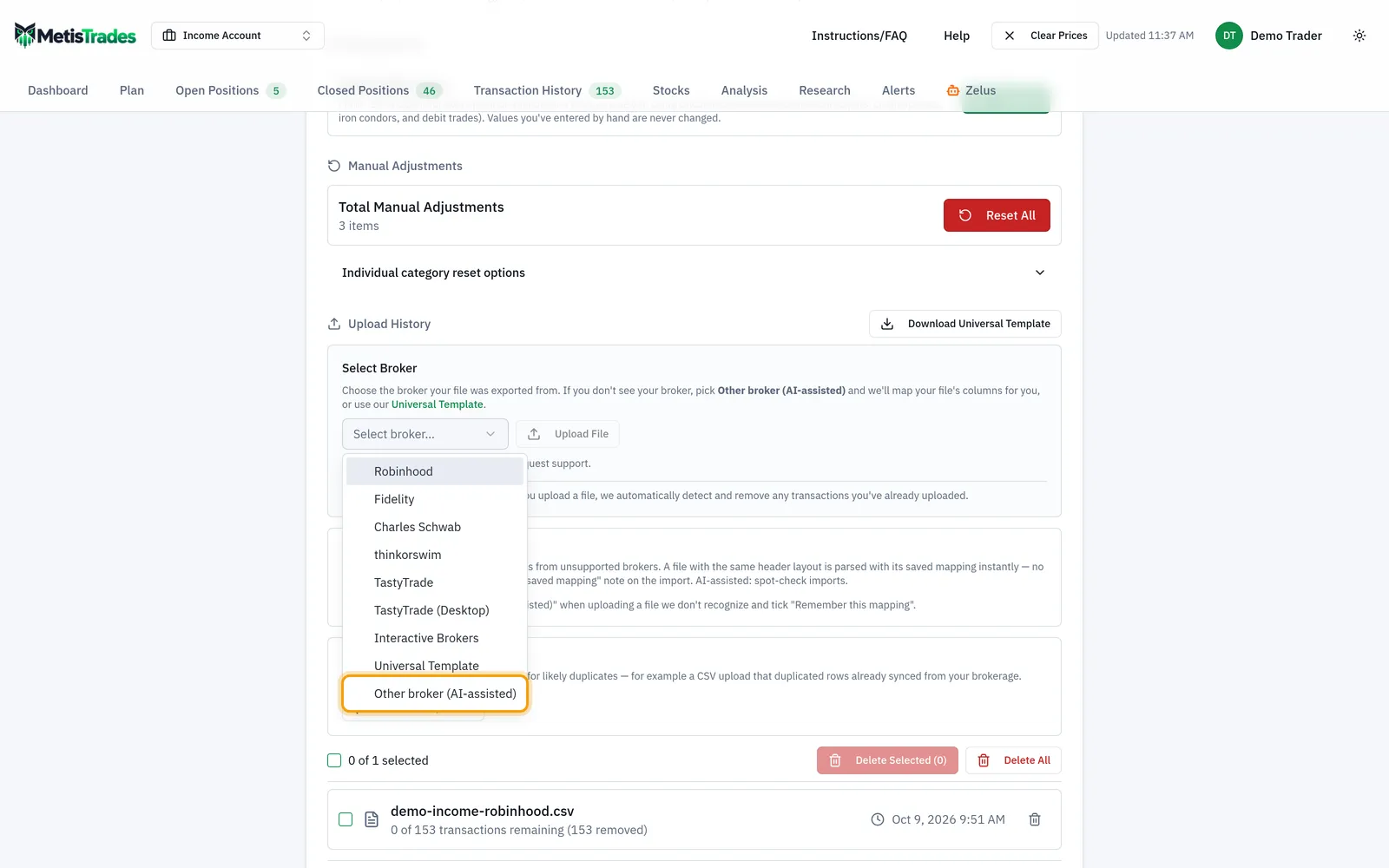
If your broker is not in the list, choose Other broker (AI-assisted). Then select Upload File and pick your export. The button reads Uploading... while it works.
4. Answer the AI mapping prompt
If the layout is not one the importer recognizes, a dialog asks before anything is sent to the AI model: "We don't recognize this format — let AI map it?" Nothing is imported while it is open.
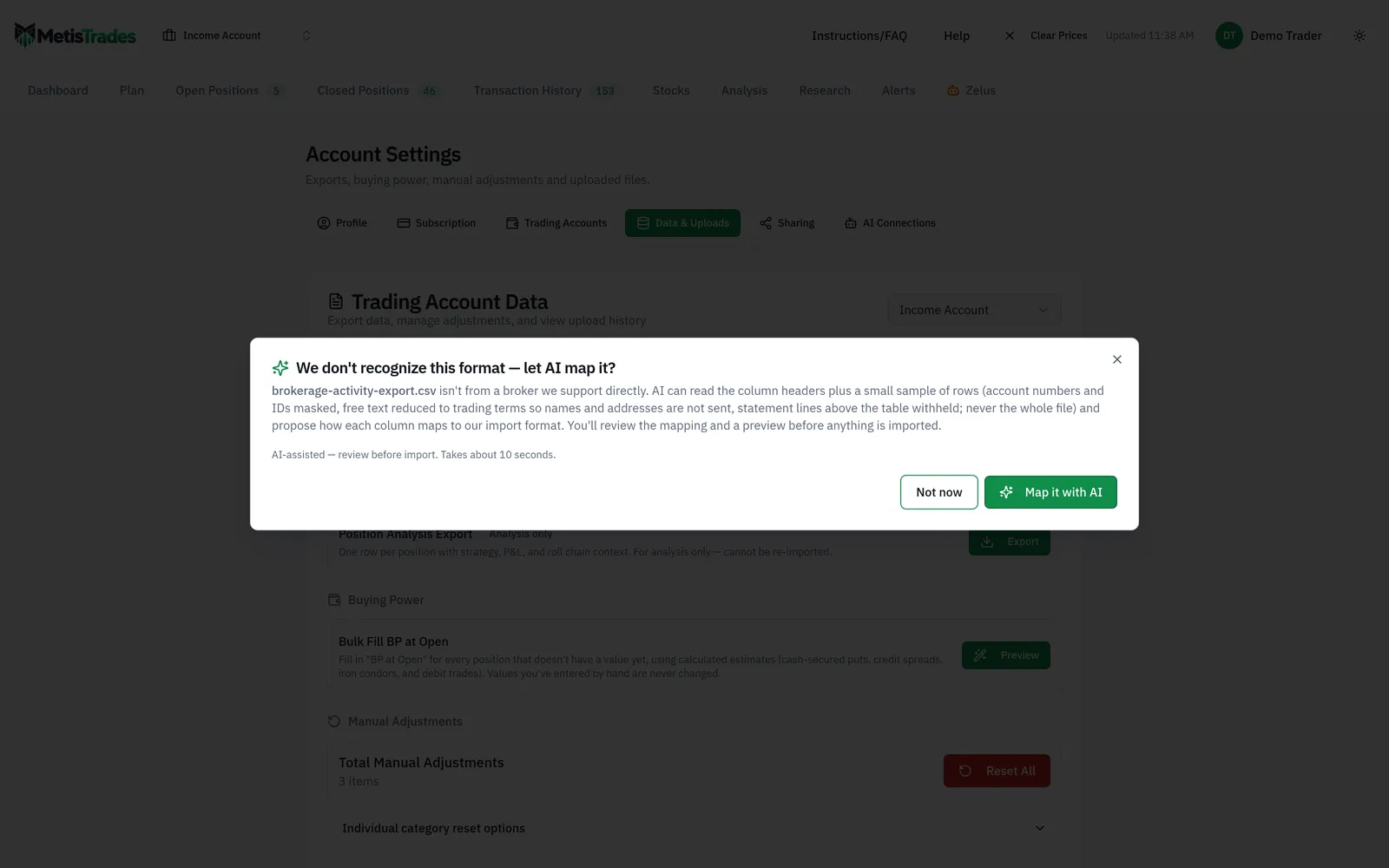
What is sent if you agree is bounded. The app sends the header row plus a small sample of rows — never the whole file. The sample is the first rows, rows spread through the file, and one row for every distinct value of each code-like column (Action, Type, Trans Code and the like), along with a short list of those distinct values and how often each occurs, so a row type that appears once late in a newest-first export is still shown. Account-number, name, address and similar identity columns, plus emails, phone numbers and long ID digits, are masked. Free-text cells such as descriptions are reduced to trading terms, tickers, dates and numbers. The statement lines above the table are never sent.
The model proposes a mapping recipe only. It never writes transaction rows; a deterministic engine applies the recipe to every row in the file.
5. Read the mapping review
The review screen shows the proposed mapping and a preview of the first rows. Work through it in three passes: the column mapping, the code rules, and then the preview. The screen reports the percentage of activity rows the recipe translated, and per-row warnings flag anything it could not.
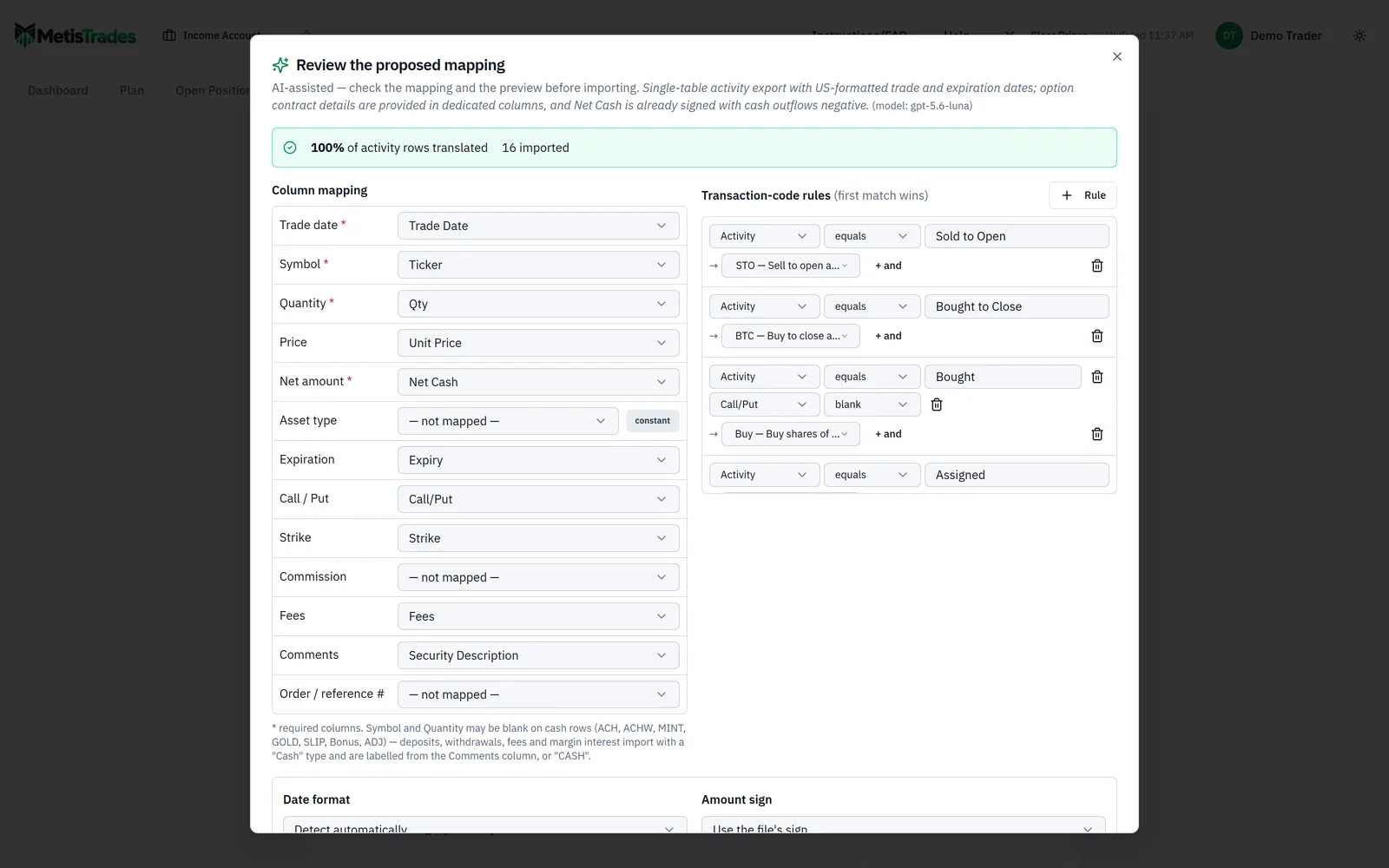
In the column mapping, check that each field is fed by the column you would have picked: date, symbol, quantity, amount, price, and the option details. If the export has an Order / reference # column, mapping it rebuilds the legs of one multi-leg order as a single position. That column is optional, and one that turns out not to be per-order — the same value across different symbols or many trade dates — is disregarded with a notice.
Below that, the code rules translate your broker's action words into transaction codes. Check the cash and income words especially, because they are easy to leave unmapped and they drive your cash balance:
| Code | What it is for |
|---|---|
| ACH / ACHW | Deposit and withdrawal |
| GOLD | Account or service fee |
| MINT | Margin interest |
| SLIP | Stock-lending income |
| DIV / INT / ROC | Dividends, interest, return of capital |
| Bonus / ADJ | Promotional or transfer bonuses; cash sweeps and other adjustments |
| ignore | Rows that move no money and no shares — pending or cancelled orders, informational lines |
You can change a field's source column, edit or add a code rule, or mark a code as ignore, then refresh the preview. Where a filter would drop rows that carry a date and an amount — typically a "Symbol is blank" rule catching deposits or fees — the review flags them with a Keep these rows button that removes the filter so those rows reach your code rules on the next preview.
6. Check the date format, sign and preview, then remember the mapping
The proposed mapping also sets the date format and the amount sign convention, and the preview shows the first rows as they will import. Read a few rows you can recognize from your broker: a buy, a sell, an expiration, and a deposit.
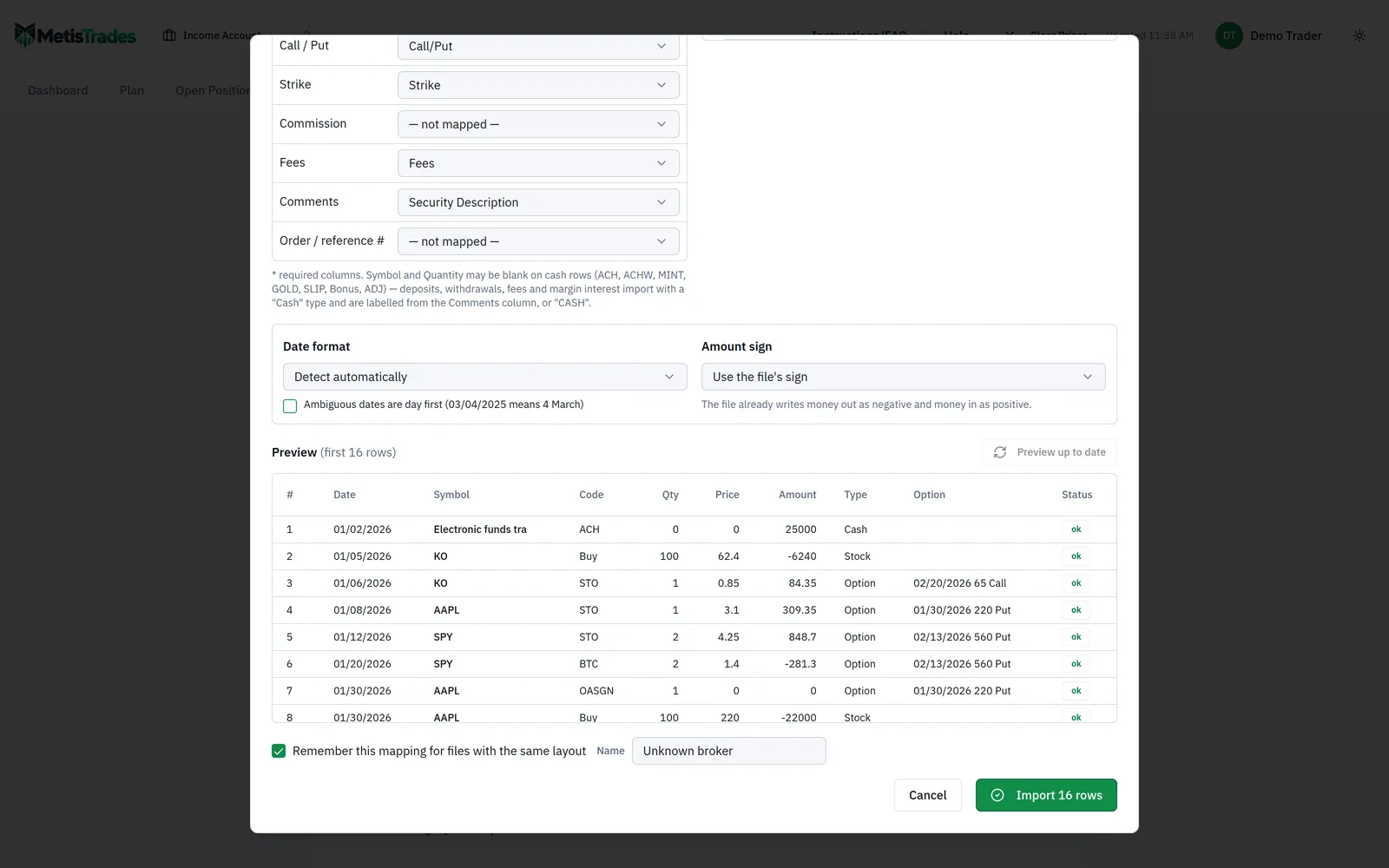
Before you confirm, tick Remember this mapping if you are signed in. A later file with the same header layout is then parsed immediately, with no AI mapping step, and shows a parsed using a saved mapping for this layout note.
7. Confirm, and handle the duplicate review
Confirming runs the whole file through the normal import path, so the duplicate review and the skipped-rows report work exactly as they do for a supported broker. If rows look like manual or synced transactions already in this account, a duplicate review opens first: you can skip selected duplicates or choose to import all anyway.
8. Find the mapping in Account Settings
A mapping you kept is stored one per header layout under Saved import mappings on this same page, where it can be renamed, edited (you supply a file with that layout to preview against), or deleted.

Check it worked
Start with the result message under this page's upload controls. It names the parser or mapping that ran — for this route, Imported with the AI-assisted mapping you reviewed — and reports how many new transactions were added and how many duplicates were skipped.
Then read the amber skipped-rows report if one appeared. Its heading gives the number of statement rows couldn't be imported, and each item can show the reason, date, statement section, row type, amount, and description. The visible list is capped at the first 200 rows, though the total is still shown. A skipped-rows warning does not mean the import failed; it means those rows were left out and everything else imported normally. Read it before relying on totals.
Next, open Transaction History for the account and spot-check the rows against your broker's export.
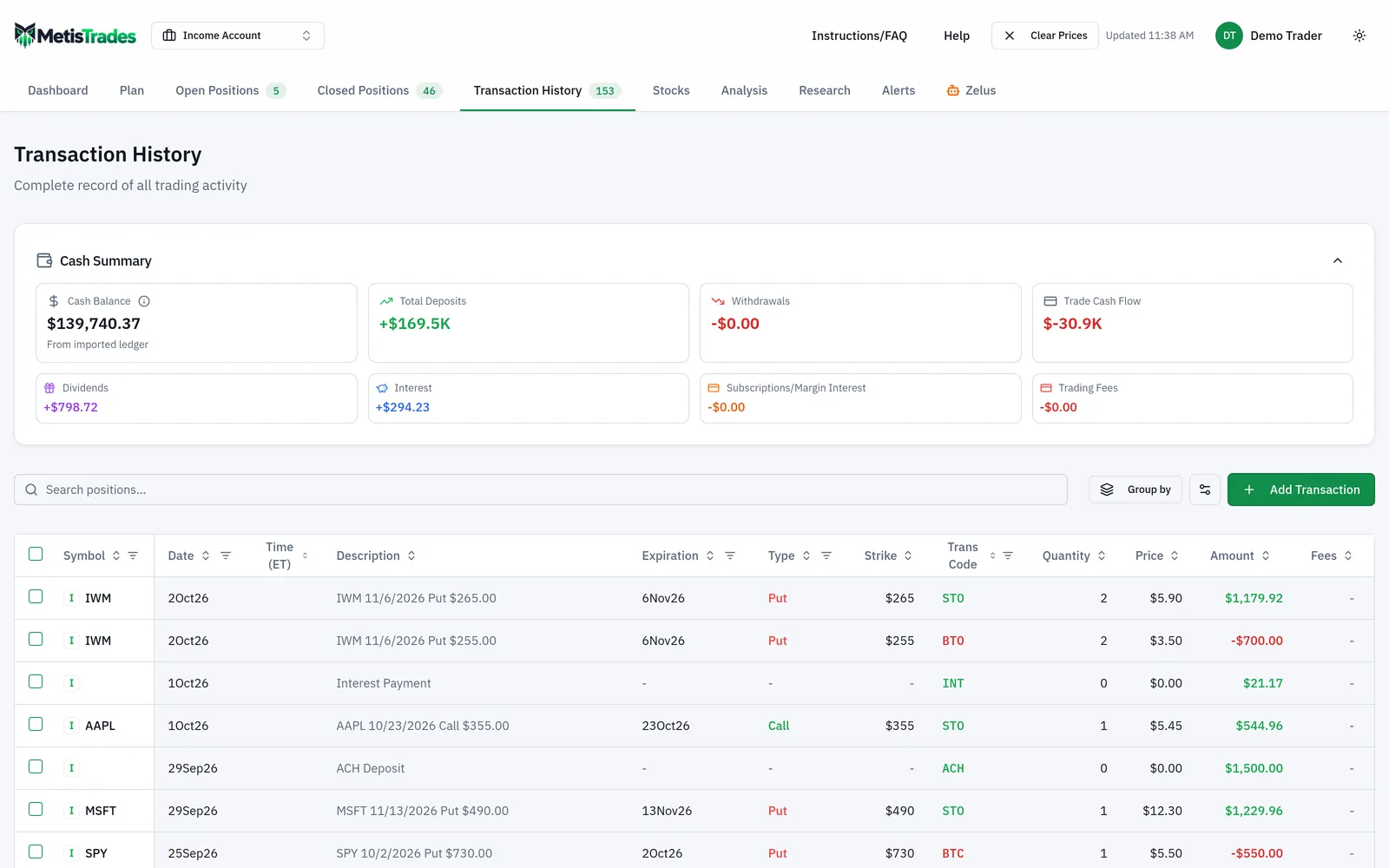
A correct result looks like this: the Upload History list has a new row with your filename, a transaction count and a timestamp; the transactions appear with the dates, symbols and amounts you exported; and your open positions reflect what you actually hold. Spot-check a few positions against your broker.
The first sign something went wrong is a count that does not match. The specific trap is uploading while the account switcher is on All Accounts: a file whose rows overlap existing activity reports Upload Successful with Processed 0 transactions, which is the app telling you nothing was added. Select the single account and upload again.
Troubleshooting and common questions
The app said "This looks like a … file"
You chose Other broker (AI-assisted) for a file the app does recognize, and the upload paused before importing anything. Choose Use the … parser unless you specifically want your own column mapping — a built-in importer usually reads more of a statement than a column mapping can. Cancel imports nothing. For thinkorswim and Interactive Brokers files the custom option is held back, because those statements stack several sections that a column mapping cannot express.
A built-in importer failed
For a thinkorswim or Interactive Brokers statement, or for a file you sent to a built-in parser from the prompt above, you see The … import didn't work, which repeats the objection and offers to let you map the columns yourself. If you picked a broker yourself and its importer failed, the upload just reports what went wrong; upload the file again under Other broker (AI-assisted) and take the custom parser when it asks.
Deposits or fees are missing
Cash rows are meant to be mapped, not ignored. If a saved mapping still ignores deposits, edit it in Account Settings and point that rule at ACH. If a non-data filter kept dated money rows out, the import note says how many were kept out and the skipped-rows report names the filter.
Transfers and corporate actions appear as skipped
Share-only movements — an internal transfer between your own accounts whose direction the file does not state, and merger, split, spin-off or ticker-change conversions — have no transaction code the app can honestly assign, so they stay in the skipped-rows report with a no rule matched reason rather than being hidden. Record those by hand with Add Transaction in that account's Transaction History.
Several same-day options were shown as one position
Your export may not include execution times or an order identifier, so the position builder estimated the grouping from symbol, date, option details, quantities, direction and later close or roll structure. If unrelated legs were combined, ungroup or split the position. If related legs were left separate, select their opening transactions in Transaction History and use Group as Position.
A saved mapping was refused
When you pick a mapping by name and it cannot read the file, the upload is refused and nothing is imported; the message names the mapping and the reason. The app does not quietly fall back to another parser, so a wrong pick cannot import a misread file. Upload the file as Other broker (AI-assisted) to map that layout again.
The account also syncs from a brokerage connection
A notice says the file will be checked against already-synced transactions and likely duplicates will be flagged before import. Afterwards you can also use Scan for Duplicates in this card, which lists likely duplicates with a match percentage and reasons. Verify the row being kept before deleting any candidate; deletion is permanent.
Can I upload from the dashboard instead?
Yes. Both uploaders offer the same broker list, the same saved mappings and the same review steps. Each keeps its own result, so an upload started in Account Settings shows its parser note and skipped-rows report there and leaves you on that page.
Related guides and help pages
Related guides
- Getting Your Trades In: File Imports and Brokerage Sync
- Plan, Track, Optimize: a complete tour of MetisTrades
- Setting up an import with the Universal Template
- Exporting, inspecting and resetting account data in MetisTrades
- Getting Started with MetisTrades: From Empty Account to Tracked Portfolio
- Creating an account and signing in to MetisTrades