Setting up an import with the Universal Template
If your broker is not one of the listed formats, the Universal Template gives you a layout MetisTrades can read. This guide covers the required columns, the transaction codes for cash and income rows, and how to confirm the upload landed.
What you are setting up and why
The Universal Template is the standard, re-importable transaction layout MetisTrades reads. You use it when there is no dedicated importer for your broker, or when you are moving normalized data between accounts.
MetisTrades has built-in importers for Robinhood, Fidelity, Charles Schwab, thinkorswim, TastyTrade, TastyTrade (Desktop) and Interactive Brokers. If your broker is on that list, use its own importer — a built-in parser usually reads more of a statement than a column layout can. The Universal Template is for everything else, alongside Other broker (AI-assisted), which maps your broker's own export instead of asking you to retype it.
What depends on getting this right is nearly everything else in the app. Imported rows appear in Transaction History, and they are what MetisTrades uses to build Open Positions, Closed Positions, stock holdings, roll chains and analysis results. Every one of those figures is an estimate derived from the transactions you supply: a missing opening trade or a wrong code changes what the app reconstructs. Tax figures in particular are estimates from imported transactions, not a substitute for your broker's 1099-B.
One more thing worth knowing before you start typing: the Universal Template has no execution-time column. That is deliberate, and it has a consequence you will meet later in this guide when several option legs share the same date.
Before you start
- Your broker's transaction history, covering the period you want to track, open in a spreadsheet so you can copy columns across.
- A decision about the account. Saving an import into a trading account requires Pro, and you must select a specific trading account when saving account data. Duplicate checking is account-specific, so import a file into the account that actually owns the activity.
- A decision about the route. If your broker is not listed, you can either put the data into the Universal Template yourself, or upload the broker's export as-is under Other broker (AI-assisted). The template gives you full control over every row; the AI-assisted route saves retyping. This guide covers the template.
- File limits. The uploader accepts CSV, XLSX and rejects files larger than 10 MB. Split a very long history into two files if you need to.
- Somewhere to note the awkward rows. Share-only movements — mergers, splits, spin-offs, ticker changes, and internal transfers whose direction the file does not state — have no transaction code that can honestly be assigned to them. Plan to record those by hand.
Step by step
1. Get the template
Open the uploader and look at Select Your Broker. From there you can download Universal Template and put your transactions into that layout. The template ships with example rows for stock buys and sells, option opens and closes, expirations, assignments, exercises, dividends, interest, transfers, deposits, withdrawals, fees, bonuses and other income — keep those examples visible while you work, because they show the exact code each row type expects.
2. Fill in the required columns
Seven columns are required: Date, Symbol, Trans Code, Quantity, Price, Amount and Asset Type. The template also includes Expiration, Option Type, Strike, Commission, Fees and Comments.
Fill the option fields for every option row. Contract size matters to the dollar amounts and Greeks MetisTrades later calculates, and the contract details are how a row is tied to a specific strike and expiration.
The minimum a row needs to survive the import is a date and either a symbol or a description. That is why cash rows, which can have a blank Symbol and a zero Quantity, should carry a description in Comments.
3. Choose a Trans Code for each row
For trades and option events, copy the code from the matching example row in the template. For cash and income rows, these are the codes MetisTrades uses:
| Trans Code | Use it for |
|---|---|
ACH | Deposit. In a signed file, a negative ACH row is a withdrawal. |
ACHW | Withdrawal. |
GOLD | Account or service fee. |
MINT | Margin interest. |
SLIP | Stock-lending income. |
Bonus | Promotional, referral, ACAT or transfer bonus, and bonus interest. |
ADJ | Cash sweeps between sub-accounts of the same broker (futures, event contracts, crypto) in either direction, and any other cash adjustment or journal. |
DIV | Dividends, capital-gains distributions, manufactured dividends and payments in lieu. |
INT | Credit, cash, sweep or options-collateral interest. |
ROC | Return of capital and non-dividend distributions. |
ACATI / ACATO | Share or option-contract transfers in and out. |
Transfer rows behave differently from trades. An ACATI or ACATO row carries a quantity and usually no amount, which imports as 0; a cost or market value written on such a row is kept as the price for information and is never turned into a cash movement. The cash leg of an ACAT — an amount with no symbol — is a separate cash row that does count as money in or out.
4. Save the file and open the uploader
Save as CSV or XLSX. Then open the uploader you want to use. Anonymous visitors start from Upload Transactions in the navigation; nothing is saved to an account, and the uploaded ledger stays as browser-session data. Signed-in Pro users can upload into a selected trading account from Account Settings, in Data & Uploads → Trading Account Data, or from the upload area on the dashboard. Both uploaders offer the same broker list and the same saved mappings; an upload started in Account Settings leaves you on that page.
The screenshot below shows the Trading Account Data section. Note its own account picker: the file imports into the account chosen there.
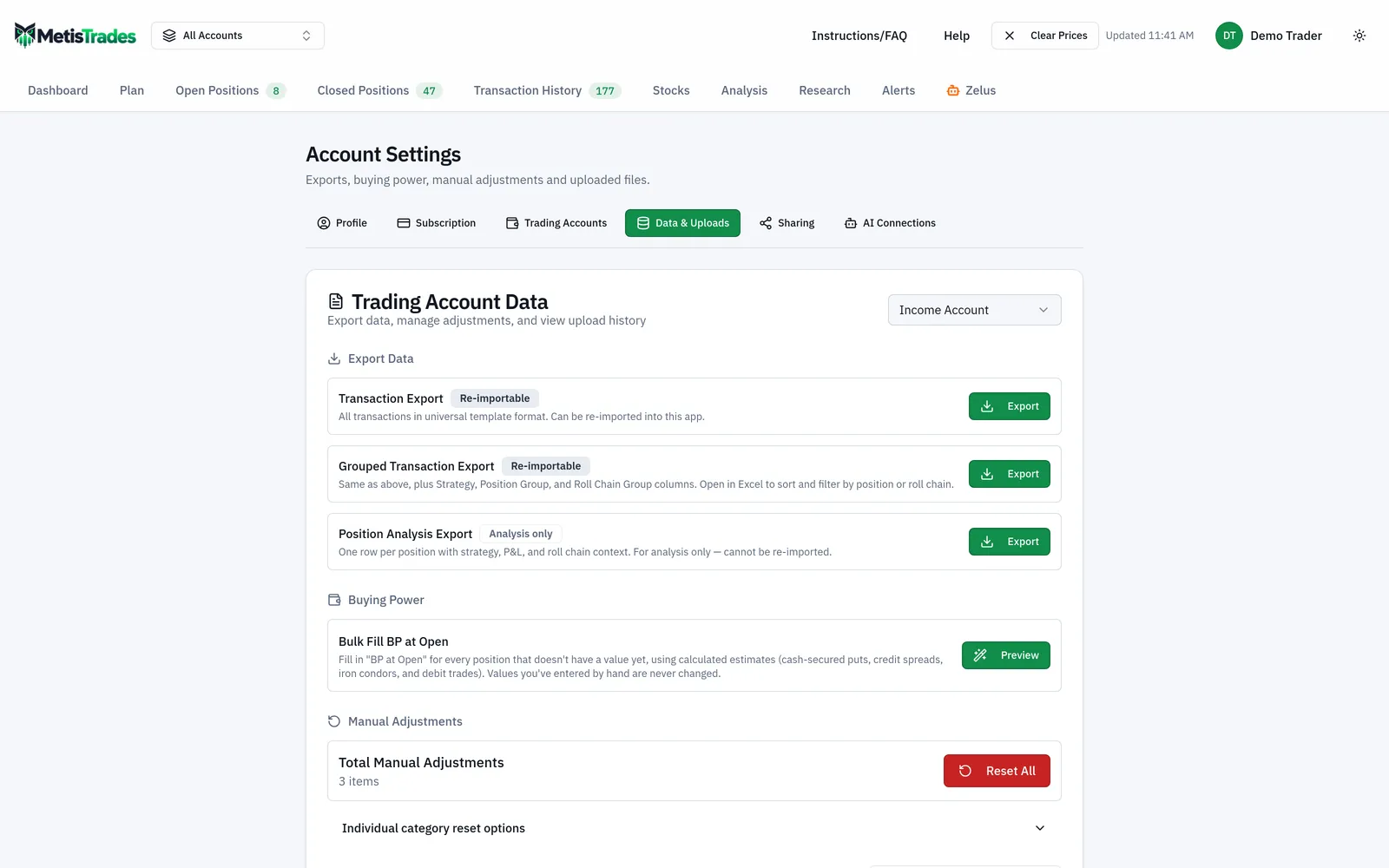
If the account switcher is on All Accounts, select the single account first. That uploader still works on All Accounts, but it skips the review dialogs — and if the file overlaps activity already in the account, the duplicate review cannot open, so the upload imports nothing.
5. Select the format and upload
In Select Your Broker, choose Universal Template. Then use Upload Your File — drag the file into the upload area or click to browse. The accepted types shown are CSV, XLSX.
6. Work through duplicate review if it appears
Saved imports use transaction identity checks, so re-uploading the same data does not blindly create a second copy. If the file may duplicate manual or automatically synced entries already in the account, a duplicate review opens before saving: you can skip selected duplicates or import all anyway. Read it carefully if the account also has automatic brokerage sync.
Check it worked
Start with the completion message. It reports how many new transactions were added and how many duplicates were skipped. Those two numbers should add up to roughly the number of activity rows in your file.
Next open Transaction History for the account you imported into. Your rows appear there after an import; scan the dates at both ends of the range to confirm nothing was clipped.
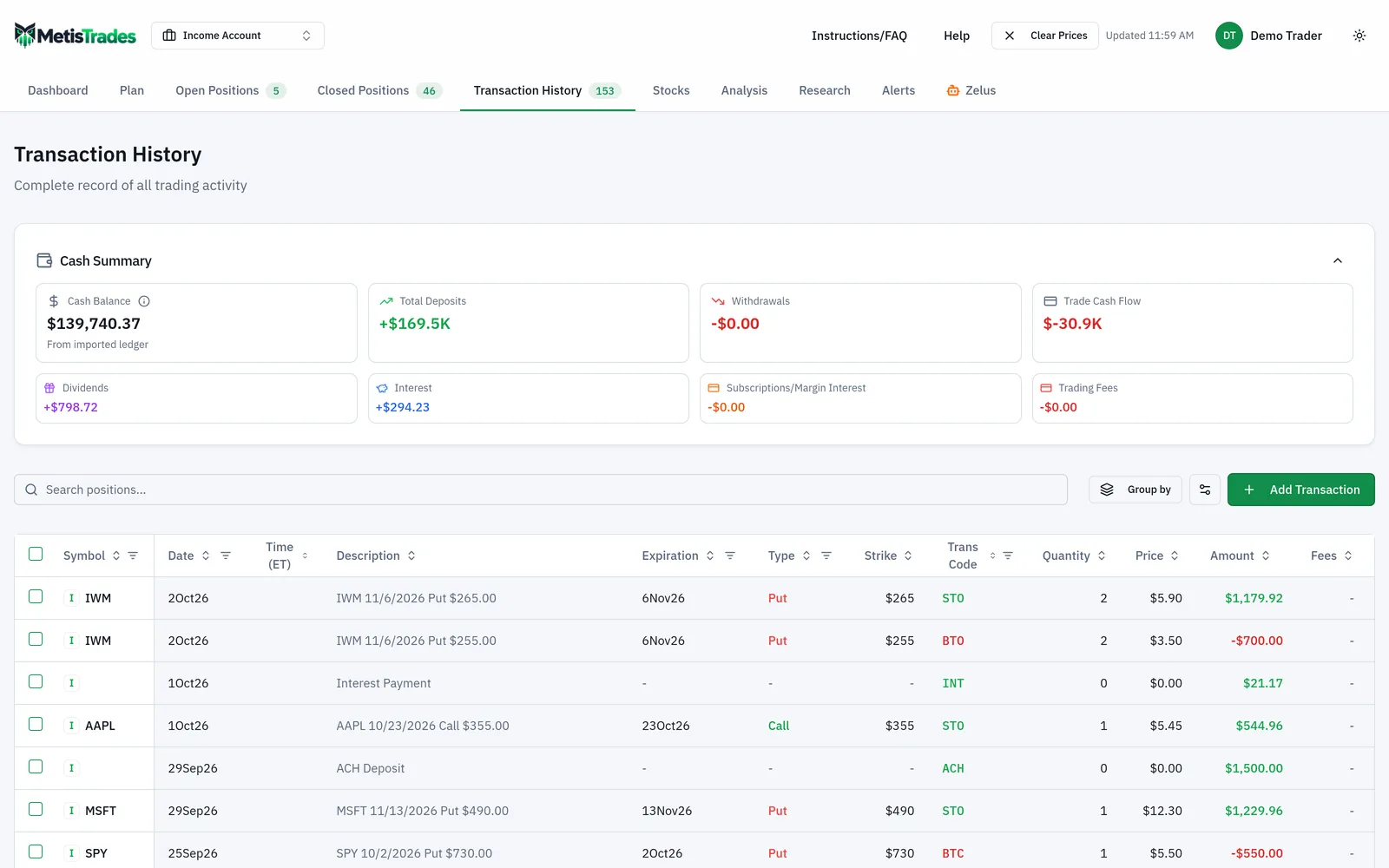
Expect Time (ET) to be blank. The Universal Template does not include an execution-time column, so there is no usable timestamp to show. That is normal, not a failure.
Then look at Open Positions and Closed Positions, which are built from the rows you just imported. If a position you still hold is missing, or one you closed is still listed as open, the likely cause is a missing or miscoded row rather than a display problem.
The clearest sign something went wrong is the error No valid transactions found in the file: no row had both a date and either a symbol or a description, so the whole upload failed. The second clearest is a success message reporting Processed 0 transactions — read that count before assuming the file went in.
Troubleshooting and common questions
The upload failed with "No valid transactions found in the file"
Every row needs a date and at least a symbol or a description. Check that your Date column actually contains dates, and that cash rows with a blank Symbol carry something in Comments.
It said Upload Successful but processed 0 transactions
This happens when you upload from Trading Account Data while the account switcher is on All Accounts and the file overlaps activity already in that account: the duplicate review cannot open there, so the upload stops and imports nothing. Select the single account in the switcher and upload again to get the review and the rows.
Why is there no skipped-rows report?
Universal Template imports do not produce parser-level skipped-row entries, because that importer maps every data row. The later minimum-field check still removes rows without a date or identifier, so a row that simply disappears is usually missing one of those.
Same-day option legs were grouped as one position, or split apart
Without execution times or a broker order identifier, separate option orders placed on the same day can look related. The position builder uses symbol, date, option details, quantities, direction and later close or roll structure to make its best grouping estimate. If unrelated legs were combined, ungroup or split the position. If related legs were left separate, select their opening transactions in Transaction History and use Group as Position. Do not invent a time to fix this; use the correction controls.
How do I record a merger, split or internal transfer?
Share-only movements and internal transfers whose direction is not stated have no transaction code that can be assigned to them. Record them by hand — in a specific account's Transaction History, use Add Transaction.
Can I re-import a file MetisTrades produced?
Yes. The Transaction Export in Account Settings uses the Universal Template format and is labelled Re-importable, which makes it the usual way to move normalized data between accounts.
I uploaded before signing in — is that data lost?
An anonymous upload stays as browser-session data rather than saved account data. After you sign in, the app can offer to move that browser-session data into a trading account.
I edited an imported transaction and now it reimported
Editing a broker-imported transaction changes it, so it no longer matches the original row in your file. Upload the same file again and the original row can come back in as a new transaction.
My broker is not listed and I do not want to retype everything
Upload the export as-is under Other broker (AI-assisted), or use the Contact us link in the uploader to request support for your broker.
Related guides and help pages
Related guides
- Plan, Track, Optimize: a complete tour of MetisTrades
- Getting Your Trades In: File Imports and Brokerage Sync
- Uploading your broker's transaction file, with AI-assisted mapping for any format
- Getting Started with MetisTrades: From Empty Account to Tracked Portfolio
- Creating an account and signing in to MetisTrades
- What You Can Use Without Signing Up, and What Pro Adds