Connecting a brokerage for automatic sync
How to link a brokerage login through SnapTrade, map each brokerage account to the right trading account, and control when syncing runs — plus how to confirm the first import landed correctly.
What you are setting up and why
A brokerage connection is the automatic-import option in MetisTrades. Instead of exporting a file from your broker and uploading it, you authorize a brokerage login once and MetisTrades retrieves that account's activity through SnapTrade, the third party that handles brokerage authorization and integration.
Connecting is two jobs, not one. First you authorize a brokerage login — that is the connection. Then you tell MetisTrades which of your trading accounts should receive each brokerage account the connection discovers — that is the link. Nothing imports until an account is linked.
Everything downstream depends on getting the link right. Synced transactions appear in Transaction History and feed Open Positions, Closed Positions, stock holdings, and the analysis pages. Brokerage data is tied to a specific trading account and is not merged across accounts when positions are built, so a brokerage account pointed at the wrong trading account produces positions and cost basis that do not match reality.
Brokerage connections are part of Pro. If your subscription ends, the section is hidden and automatic syncing stops; transactions already imported stay in your trading accounts, and syncing picks up again once your access is active. Synced activity is still an estimate of your records — it is not a replacement for checking your broker's official statements.
Before you start
- Active Pro access and a signed-in account. The Brokerage Connections section appears for everyone with active Pro access while the feature is switched on. Someone viewing a public share cannot connect, refresh, link, unlink, or sync.
- Your brokerage login credentials, ready for the brokerage's own authorization screen.
- The trading accounts you want to use, already created. Decide in advance which MetisTrades trading account each brokerage account should feed. One brokerage account can feed only one trading account.
- Know what your broker supports. The brokerage picker groups choices into Options + stocks (full options history, including assignments and expirations), Options with gaps (option positions sync, but some option activity is missing), and Stocks & funds only (no options data; holdings, dividends, and account value still sync). Read the group before you connect so you know what to expect.
- Check whether you already upload files into that account. You can do both, but the upload flow will warn you and ask you to review likely duplicates when the selected account also syncs automatically.
- Time for the first import. An account with substantial history can take several minutes to import.
Step by step
1. Open Brokerage Connections
Open your user menu, choose Account Settings, and select Brokerage Connections in the section bar (or go straight to /account/brokerages). The section describes itself as Connect your brokerage account to automatically sync transactions. If the card instead says Brokerage connections are not yet configured. Please check back later., the service is not set up on the site and there is nothing to do yet.
2. Choose your brokerage
Select Connect Brokerage. The Select Your Brokerage dialog lists the available choices under the three support groups. A choice marked Maintenance is temporarily unavailable and cannot be selected; Canadian choices can carry a Canada label. If nothing is listed, the dialog says No brokerages are currently available for connection.
3. Authorize at the brokerage
Selecting a brokerage opens its authorization flow. When it finishes, the app returns to the Brokerage Connections section and checks the connection status. If authorization is still pending, the connection's row says Waiting for brokerage authorization… checking automatically and offers Check now and Cancel. Only one connection can be pending at a time, so finish or cancel this one before adding another.
4. Link each brokerage account to a trading account
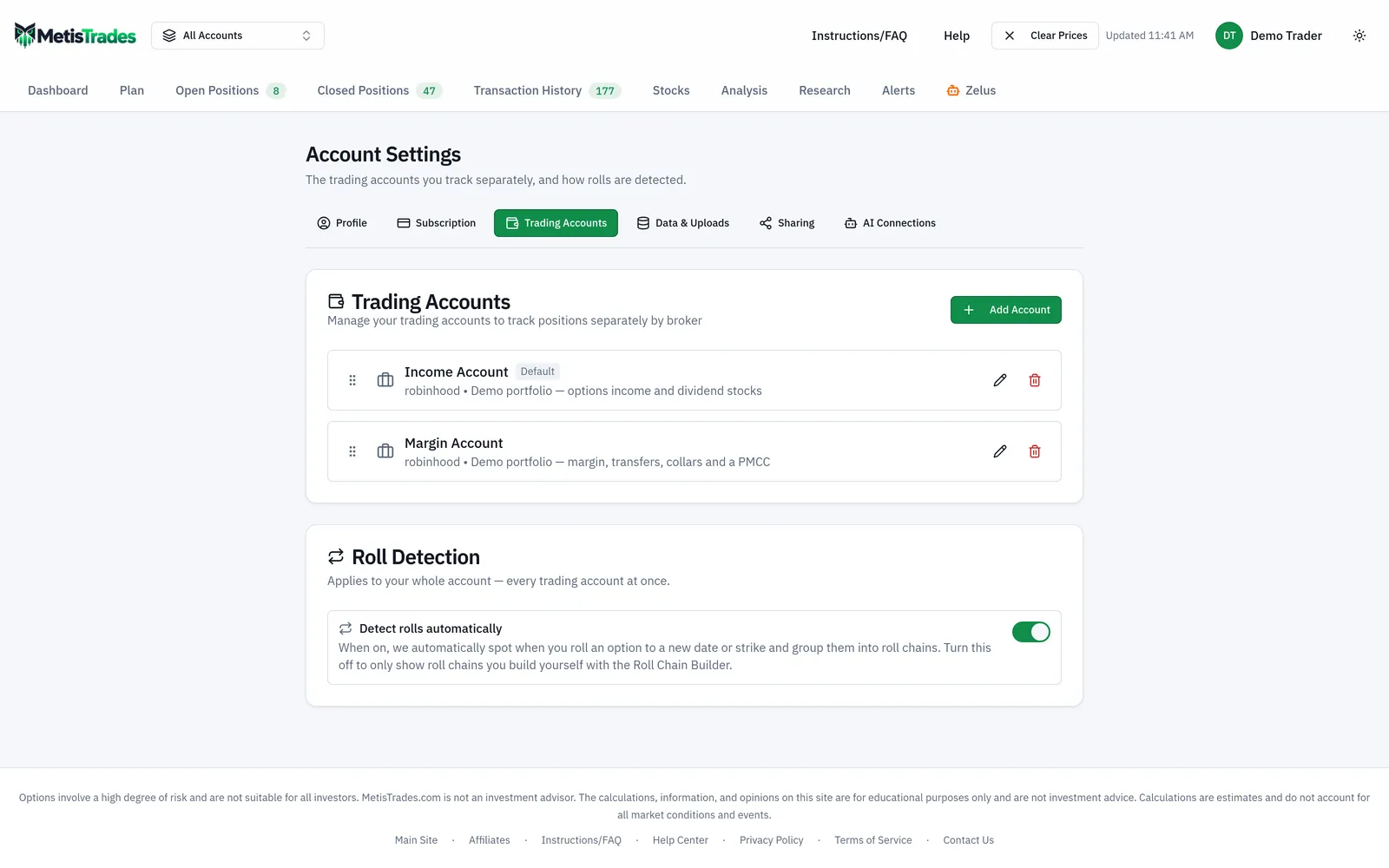
Under Brokerage Accounts, every account the brokerage returned appears with its name or number, the last four digits where available, the brokerage name and account type. Use Select trading account on each account you want to import. The row then shows Linked to: followed by the trading account name. A trading account already in use elsewhere is marked (linked to another), and choosing it is refused with a message naming the account it is linked to.
In the screenshot below, look at how each brokerage account row carries its own destination — one brokerage account, one destination, no sharing.
5. Run the first sync
Use Sync Now beside a linked account, or Sync All above the list once at least one account is linked. While it runs, labels can change to Queued, Syncing..., or a numbered progress label, and the status can say Initial sync in progress — SnapTrade is importing your transaction history.
6. Add a second login if you need one
Use Add Another Brokerage for a different brokerage or a second login at one you already connected — a brokerage you have connected carries a Connected badge and the line Add another login at …. Each login is its own connection with its own fixed name (a second Schwab login is "Schwab (2)") and an optional nickname set with the pencil icon. If the same brokerage account is visible through two logins, the page warns you: link it under one connection only, because linking both would import the same trades twice.
7. Know which control does what
| Control | What it does |
|---|---|
| Sync Now | Reconciles the latest available activity and orders with what is already saved for that account. |
| Sync All | Syncs every linked brokerage account. |
| Full Resync | A repair action: deletes the stored SnapTrade transactions for that trading account and re-imports the complete brokerage history. Uploaded and manual rows are left alone. |
| Unlink | Removes the mapping between one brokerage account and its trading account. |
| Trash icon on a connection | Disconnects that one login. Accounts that came through it stop syncing and go back to CSV uploads; imported transactions are kept. |
| Disconnect All | Removes every connection at once and switches all synced trading accounts back to CSV uploads. Imported transactions are kept. |
Check it worked
Start on the Brokerage Connections card. A healthy connection shows an Active status badge and the number of brokerage accounts it provides. Each linked account row shows Linked to: with the right trading account. It can also show a transaction count with a short transaction-type breakdown, Last synced with a time when available, and the imported and skipped counts after a run. Broker data current through gives SnapTrade's latest successful transaction-sync date — that is how current the broker's data is, not a promise that a trade you placed minutes ago is present.
A high skipped count on a repeat sync is normal: skipped means reconciliation matched those rows to activity already stored and did not insert them again.
Next, open Transaction History for the trading account you linked and confirm the rows look like your broker's records — dates, symbols, quantities and amounts. Check the oldest row too, so you know how far back the history reached.
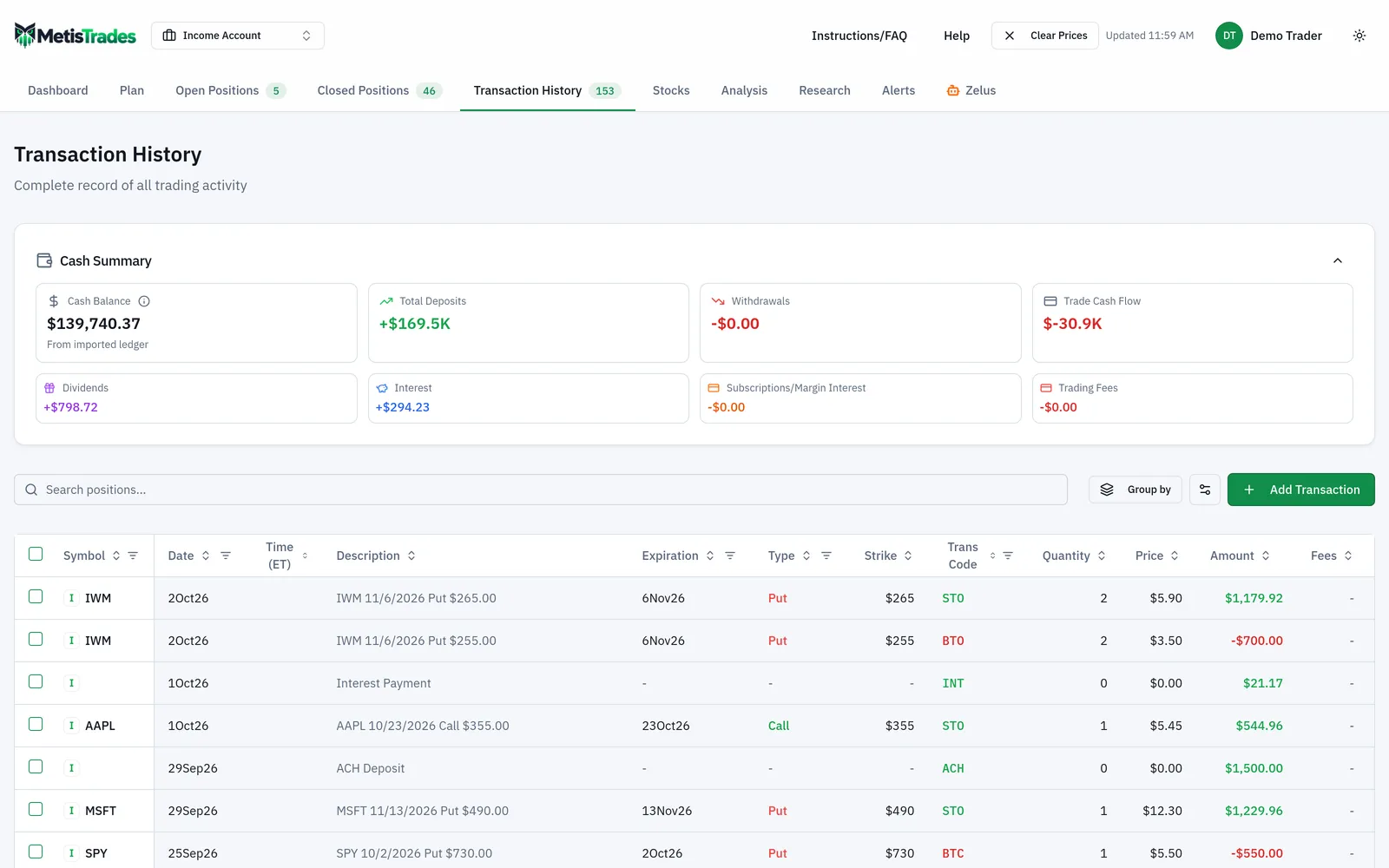
Then glance at Open Positions. If positions match what you hold, the link is pointed at the right trading account. The first sign something went wrong is positions appearing in an account where you do not trade, or a trading account that stays empty after a sync reports imported transactions — both point to a brokerage account linked to the wrong trading account. Unlink it, link it correctly, and sync again.
Troubleshooting and common questions
I connected, but nothing imported
The connection only discovers brokerage accounts. Check that each account under Brokerage Accounts shows Linked to: a trading account, then run Sync Now.
Today's trade is missing
The brokerage may not have updated SnapTrade yet, or an on-demand refresh may be unavailable or rate-limited. Read the freshness note on the account card and sync again shortly.
How often does it sync on its own?
Syncing is event-driven, not a fixed hourly schedule. When SnapTrade reports fresh holdings, account, or transaction data, MetisTrades queues a sync for the affected linked account. You can always run Sync Now yourself.
The initial sync is still running
Wait and try again shortly. Large account histories can take several minutes.
The row says Needs reconnect or Disconnected
Needs reconnect means your brokerage revoked access; use Reconnect to re-authorize the same login, and your account links are kept. A Disconnected row is kept rather than deleted so its name does not collide with your other logins; Reconnect starts a fresh login at the same brokerage, or the trash icon removes the row. Your other connections keep syncing either way.
My transfer bonus never appeared
Four activity types are listed as not syncing automatically: ACAT transfer bonuses, referral rewards, promotional credits, and ACAT residual cash transfers. Open the correct account in Transaction History, select Add Transaction, and record a manual offset with the type and amount that represent the missing activity.
Can I still upload a CSV into a synced account?
Yes. No CSV uploads are needed once connected, but you may still use a file or a manual transaction for activity SnapTrade does not deliver. The upload area in Trading Account Data warns when the selected account also syncs automatically, checks the file against synced activity, and asks you to review likely matches.
When should I use Full Resync?
Only as a repair action, when you intend to delete that account's SnapTrade-sourced rows and import the full available history again. It does not touch file imports or manual entries.
Does disconnecting delete my data?
No. Both the single-login dialog and Disconnect every brokerage? state that imported transactions are kept; the affected trading accounts simply go back to CSV uploads.
Related guides and help pages
Related guides
- Getting Your Trades In: File Imports and Brokerage Sync
- Plan, Track, Optimize: a complete tour of MetisTrades
- Getting Started with MetisTrades: From Empty Account to Tracked Portfolio
- Creating an account and signing in to MetisTrades
- What You Can Use Without Signing Up, and What Pro Adds
- A Tour of Account Settings in MetisTrades