Sharing a Read-Only View of Your Portfolio with a Share Link
How to create a public, read-only link to one trading account in MetisTrades, what a viewer can and cannot see, and how to revoke or delete the link when sharing should end.
What you are setting up and why
A public share link lets someone open a read-only view of one of your trading accounts without signing in. You create the link, you name it, and you decide when it stops working. The person you send it to just clicks it.
This is useful when you want a trading partner, an accountant, a mentor or a forum thread to look at your actual record rather than your description of it. They see your open positions, closed positions, transactions, stocks and part of your Analysis area as you see them, but they cannot change anything and they cannot reach your other accounts.
Two things follow from how the link works, and both matter before you create one.
First, the link is unauthenticated. The page does not ask the viewer to prove who they are. Possession of the URL is the whole of the permission. Treat it like a password: anyone it is forwarded to can open it, and deleting the message you sent it in does not revoke the URL.
Second, one link covers exactly one trading account. There is no All Accounts view in a share and no account switcher on the public page, so if you keep separate accounts you are choosing which one to expose.
The Account Sharing card is available to Pro subscribers with active access who have at least one trading account. That includes active and trialing subscribers, lifetime users and legacy lifetime users. Signed-in users without active access do not see the card.
Before you start
- A Pro subscription with active access. Without it, the Account Sharing card does not appear in Account Settings.
- At least one trading account. The card only appears once you have one, and links belong to the account you select inside the card.
- A decision about which account to share. Open that account first and look at it as a stranger would. The public page shows the account name, broker type and the optional account description, along with positions, transactions, cash and performance figures.
- A decision about expiry. Decide now whether the link should stop working by itself. The Expires In (days, optional) field accepts a minimum of one day; leaving it empty means no automatic end date, and the link stays usable until you revoke or delete it. For a one-off review, a short expiry is the safer default.
- A link name you will recognise later. The name is required, it appears in your list and it is shown as the heading of the public page. The example offered in the dialog is My Public Portfolio. Something like "Accountant – Q1 review" is easier to audit months later.
- A clear idea of what stays private. Transaction notes, Trade Notes, Position Notes and position Tags are not shared, and Tag Analysis, Wheel Cycles, Margin, AI Open Positions and AI Closed Positions are hidden from the public Analysis area. Everything else on the shared tabs is visible.
Step by step
1. Open the Sharing section of Account Settings
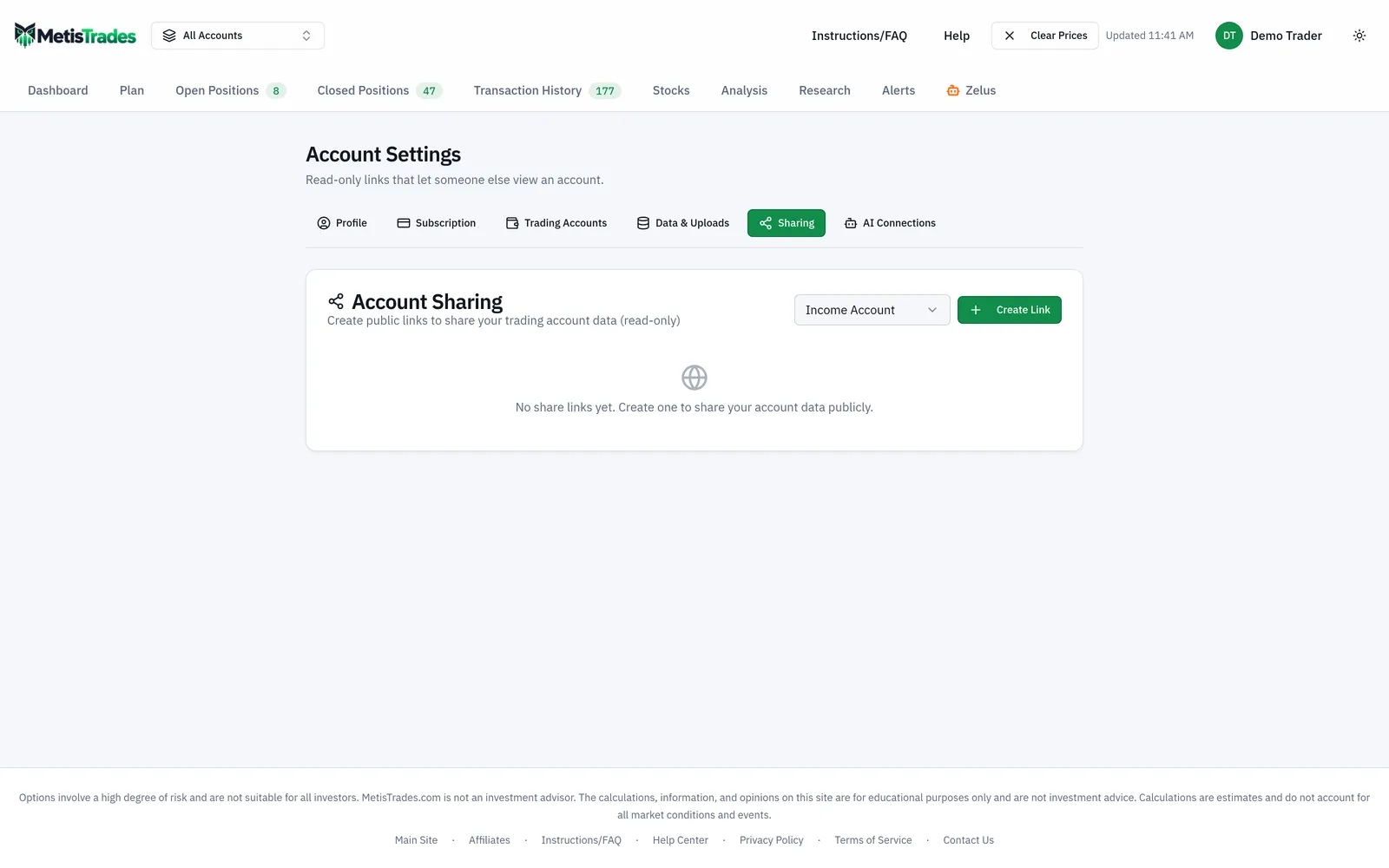
Open your user menu, choose Account Settings, and select Sharing in the section bar. The route is /account/sharing. Find the Account Sharing card.
2. Choose the account the link will expose
Use Select account to pick the trading account you want to share. The selector prefers the individual account you currently have selected; otherwise it uses the first account. Links are fetched and managed for the selected account only, so if you have several accounts, confirm this before going further.
The card below the selector is where you create links and where every link for that account is listed with its name, status, creation date, optional expiry and click count. If you have not made one yet, it reads No share links yet. Create one to share your account data publicly.
3. Create the link
Choose Create Link. The Create Share Link dialog opens and explains that viewers will see positions, transactions and analysis in read-only mode.
- Enter a Link Name. This is required; Create Link stays unavailable until you supply one.
- Optionally enter a value in Expires In (days, optional). The minimum the field accepts is 1 day. Leave it empty for no expiration.
- Choose Create Link to create it, or Cancel to close the dialog without creating anything.
The page reports Share Link Created and the new link appears in the selected account's list with the status Active.
4. Preview before you send
An active link row offers a preview control that opens the public page in a new browser tab. Use it to read the shared page as a viewer would, so nothing on it surprises you later. Check the heading (your link name), the account name, broker type and description, the four summary cards — Total P/L, Realized P/L, Win Rate and Positions — and each of the five tabs.
5. Copy the URL and send it deliberately
Use the copy control on the link row to put the URL on your clipboard, then send it to the specific person who needs it. Do not post it in a public channel unless you intend everyone in that channel, and anyone they forward it to, to see the selected account.
6. End the sharing when the review is over
When the link has done its job, revoke or delete it. Both stop access; the difference is what remains in your list.
| Action | Dialog | Result for you | What the viewer sees |
|---|---|---|---|
| Expiry passes | None — automatic | Row status becomes Expired with the date | Link Expired and "This share link has expired." |
| Revoke | Revoke Share Link? → Revoke Link | Row status becomes Revoked; the record stays in your list and cannot be reactivated | Link Revoked and "This share link has been revoked by the owner." |
| Delete | Delete Share Link? → Delete Link | The share record is permanently removed; this cannot be undone | Link Not Found and a message that the link does not exist or has been deleted |
If you need to share again afterwards, create a new link with Create Link.
Check it worked
Go back to Account Settings → Sharing and look at the Account Sharing card with the correct account chosen in Select account. A correctly created link shows its name, the status Active, its creation date, and the expiry date if you set one. Once the link has been opened at least once, the row also shows a click count.
Then open the link itself, or use the preview control. A working share loads briefly as Loading shared portfolio... and then shows the Public View badge in the sticky header, your link name as the heading, and the account name and broker type below it. The view opens on Open Positions, with Closed Positions, Transactions, Stocks and Analysis alongside it. The footer states that this is a read-only view of a shared trading account.
Two checks are worth doing deliberately on that page. Open Analysis and confirm you see only Roll Analysis, Covered Calls and Assign/Exercise — Tag Analysis, Wheel Cycles, Margin, AI Open Positions and AI Closed Positions should not be there. Then open Transactions and confirm no notes appear; the transaction notes field is removed before shared transactions are returned.
The first sign something is wrong is usually one of the error states. Link Not Found means the URL does not exist or the link was deleted. Link Expired means the expiry you set has passed. Link Revoked means the link was revoked. Something Went Wrong covers other failures. Each error state offers Go to MetisTrades. The other warning sign is subtler: if the shared page shows an account you did not mean to expose, you picked the wrong account in Select account before creating the link — revoke it and create a new one against the right account.
Troubleshooting and common questions
I cannot find the Account Sharing card
The card appears only when you have active access and at least one trading account, and only for Pro users. Signed-in users without active access do not see it.
Does the viewer need a MetisTrades account?
No. Anyone holding an active URL can open the page without signing in.
Can a viewer see my other trading accounts?
No. A link is created for one selected account, and the public page has no account switcher or account selectors.
Can a viewer change anything?
No. The shared page is read-only. Edit, delete, upload, grouping and account-management actions are not rendered there.
Are my tags and notes exposed?
No. Transaction Notes, Trade Notes, Position Notes and position Tags are hidden, tag and position-note lookups are disabled in the public position views, and Tag Analysis is not available as a public Analysis sub-tab.
Can I reactivate a revoked link?
No. The revocation dialog says explicitly that the link cannot be reactivated. Create a new link instead.
Someone forwarded my link. What now?
Revoke it. Revocation immediately stops anyone viewing through that link. Deleting the message that carried the URL does not revoke the URL.
What does the click count tell me?
It counts unique daily views, deduplicated per link, visitor and day using a hashed IP address. It is a count only — it does not identify who opened the link.
Are the shared numbers the same as my broker's?
Treat them as estimates. Shared figures are rebuilt from the owner's imported transactions, so they depend on complete, accurate imports. Prices on the shared surfaces use delayed quotes or the latest available price, and the public page does not inherit your browser's cached marked prices. Any tax-related figures in a share are estimates from imported transactions, not tax advice, and not a substitute for the broker's 1099-B.
Related guides and help pages
Related guides
- Plan, Track, Optimize: a complete tour of MetisTrades
- Getting Your Trades In: File Imports and Brokerage Sync
- Getting Started with MetisTrades: From Empty Account to Tracked Portfolio
- Creating an account and signing in to MetisTrades
- What You Can Use Without Signing Up, and What Pro Adds
- A Tour of Account Settings in MetisTrades