Letting Zelus draft changes for you to review
Zelus can prepare portfolio changes as reviewable cards: groupings, notes, alerts, plans and manual transactions. Nothing is written until you select Apply. Here is how the propose-then-approve flow works, with a worked XYZ example.
What it does and when to use it
Zelus is the assistant inside MetisTrades. When action drafting is enabled, it can do more than answer questions: it can prepare a change to your records as a card that you read and then approve or discard. The card is a draft. Nothing is written to your portfolio, notes, alerts, projections or transactions until you select Apply.
That propose-then-approve flow answers one question: can I describe a record-keeping change in a sentence and still see exactly what will be saved before it is saved? You say what you want, Zelus resolves which position, transaction or plan you mean within the conversation's pinned account scope, and it lays out the proposed fields. You check them against what you know to be true, then apply or dismiss.
A few terms before going further. A position is one stock or option holding built from your imported transactions. A leg is one stock or option part of a position; a spread has several. A position group is transactions combined into one option position under a strategy label you choose. A strategy label is the name MetisTrades displays for a position, such as Iron Condor or Cash Secured Put. An iron condor is a four-leg, range-based position combining a put credit spread and a call credit spread; its maximum gain is generally the net credit, and the long wings define the maximum loss.
The card types Zelus can draft are: Position note, Transaction note, Group positions, Strategy change, Position alert, AI projection, Manual transaction, Planned trade, and five Plan drafts — Exit plan, Planned trade edit, Income goal, Risk targets and Margin plan. That is the whole list. Zelus cannot place, modify or close brokerage orders, and it cannot run imports.
This is most useful for tidying work: an import that split one strategy into pieces, a note you want attached to the right position while the reason is fresh, an alert you keep meaning to set, or a cash event your broker file did not carry.
A worked scenario
You sold an iron condor on XYZ. Your broker exported the four legs as two separate positions, so MetisTrades shows a put credit spread and a call credit spread rather than one condor. You want them grouped, you want a note recording why you chose those strikes, and you want an alert when the position reaches half of its maximum profit.
The trade, two contracts per leg, standard equity options at 100 shares per contract:
| Leg | Side | Qty | Strike | Credit/debit per share |
|---|---|---|---|---|
| XYZ put | Short | 2 | 95 | +1.40 |
| XYZ put | Long | 2 | 90 | −0.55 |
| XYZ call | Short | 2 | 110 | +1.20 |
| XYZ call | Long | 2 | 115 | −0.50 |
Work the arithmetic by hand first, so you can check anything a tool shows you. The put spread nets 1.40 − 0.55 = 0.85 per share. The call spread nets 1.20 − 0.50 = 0.70 per share. Net credit is 0.85 + 0.70 = 1.55 per share, which is 1.55 × 100 = $155 per unit, and $155 × 2 = $310 collected across two contracts.
Each side is 5 points wide (95 − 90 and 115 − 110). Maximum loss per unit is the width minus the credit: 5.00 − 1.55 = 3.45 per share, or $345 per unit, $690 for two. Maximum profit is the $310 credit. Half of maximum profit is $155.
So the three changes you want are: group the two positions under Iron Condor; add the note "Sold 95/90 put and 110/115 call wings, 1.55 credit, IV rank 62"; and set an alert on position percent of maximum profit, condition above, threshold 50. That is three cards, which is exactly the per-reply cap — one reply can create at most three action cards across all types.
Step by step in MetisTrades
1. Open Zelus
Go to /zelus, or use the nav path Top nav → Zelus → Ask for an action. Within the app you need active access to reach Zelus. Anonymous visitors see a sign-in prompt, and signed-in users without active access are redirected to Account Settings by the app shell. Action drafting also requires an admin-controlled action flag; when that flag is off, Zelus is read-only and the Actions you approve category is hidden.
2. Check what can be asked
Select What can I ask? to see the available action category when action drafting is enabled.
3. Set the account scope
Zelus resolves the target within the conversation's pinned account scope. For the XYZ condor this matters: all positions in a Group positions draft must belong to the same account. If you are in an All Accounts conversation and the same position exists in more than one account, name the account in your request.
4. Ask for the change in plain words
Describe the outcome, not the mechanics. For the grouping: "Group my XYZ 95/90 put spread and 110/115 call spread into one Iron Condor." For a note: "Add a note to my XYZ condor: sold 95/90 put and 110/115 call wings, 1.55 credit, IV rank 62." For the alert: "Alert me when that position reaches 50% of max profit."
5. Read the card before you touch anything
Each card carries an action label, a one-line summary, the important fields, and a status. Field labels vary by card type and can include Position, Positions, Opened, Status, Account, Note, Transaction, Description, Amount, New strategy, From, To, Symbol, Target, Alert on, Condition, Threshold, Email notification, Target date, Leg, Capacity, Date, Type, Instrument, Quantity, Price, Multiplier, Commission, Fees and Applies with.
Cards are stacked under the reply that produced them, each with its own fields, status and buttons. Look at the account line and the listed positions first, then the specific values you asked for.
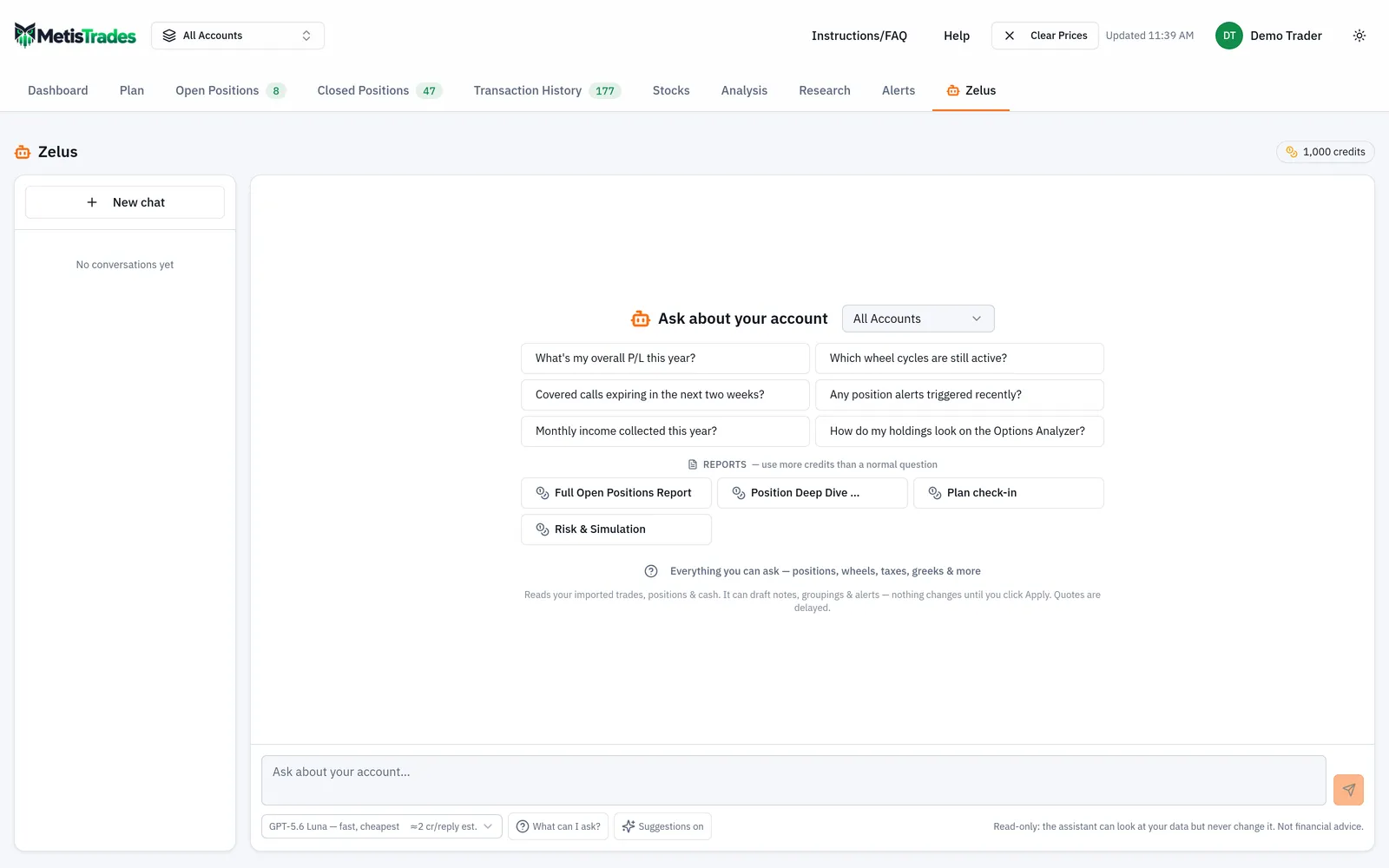
6. Apply or dismiss
A pending card starts as Awaiting your approval and offers Apply and Dismiss. The caption reads Nothing is saved until you apply. Applying uses your signed-in permissions and the card's resolved account scope. A card is claimed before submission, so a second click or a second browser tab cannot create the same change twice.
7. Handle linked pairs together
An option assignment or exercise produces two linked Manual transaction cards: the option removal and the share trade at the strike. The group is headed Linked entries — one assignment or Linked entries — one exercise and explains that the two ledger rows apply together. Use Apply both or Dismiss both. The pair uses two of the reply's three card slots. If one entry is applied and the other is still open after an error, use Apply remaining entry; the page warns clearly when a pair is half handled or half logged. Pairing is for share-settled equity options.
How to read the results
A card's status tells you exactly where the change stands:
- Pending — valid and waiting for your decision. Nothing has been written.
- Applying — the approved action is being submitted with your current signed-in permissions.
- Applied — the action succeeded, and the card records that outcome. An applied card cannot be dismissed through this control.
- Failed — the attempt did not succeed. Read the error and use Try again if appropriate.
- Invalid — the card says Can't be applied and has no Apply button. The caption reads This draft can't be applied — nothing was saved.
- Dismissed — you discarded the draft without applying it.
For the XYZ scenario, here is what each applied card means and what it does not.
The Group positions card lists the two positions and the selected strategy. After you apply it, the positions are grouped into one position built from the same imported transactions. Grouping does not re-price anything: the $310 credit and the $690 maximum loss you worked out are properties of the trade, not of the label.
A Strategy change card, if you had used one instead, shows the position and the old and new labels and updates the strategy display. The source is explicit that the underlying imported transactions do not change.
The Position note card shows the position, opened date, status, account and note. After you apply it, the card says the note was saved and the note appears on the position. The note text is exactly what you dictated, so read it on the card rather than assuming Zelus paraphrased it well.
The Position alert card shows the target, criterion, condition, threshold and whether email notification is enabled. Email notification defaults to on unless you ask otherwise. Criteria available are delta, option price, underlying price, days to expiration, extrinsic value, extrinsic percent, unrealized P/L, unrealized P/L percent, position percent of maximum profit, and position percent return; the condition can be above, below or crosses, and for leg-based criteria Zelus can target one leg or any open leg. After you apply it, manage the alert on the Alerts page. An alert is a notification: Zelus cannot place, modify or close brokerage orders.
Two more "applied does not mean finished" cases are worth knowing. An AI projection card queues the same kind of run available from the Projections page; applying it queues the run rather than putting a finished projection into the chat, and the card says results land on the Projections page in a minute or two. A Planned trade card saves a watchlist entry under Plan → Planned Trades, never a broker order; an entry condition such as "if it dips to 95" is stored with the plan, but the new row's Entry alert switch starts off and you switch it on yourself under Plan → Planned Trades.
The five Plan drafts — Exit plan, Planned trade edit, Income goal, Risk targets, Margin plan — each start from what is saved right now, change only the fields you asked about, and list every field they move as current → proposed, so the card shows you the exact delta. The saved result is the same as if you had used the Plan page editor. An Exit plan card does not create alerts; arm them from the plan editor on the Plan page.
Limits and assumptions
Zelus can draft at most three cards in one reply, and a linked assignment or exercise consumes two of those slots. If you ask for four things at once, expect to ask again for the remainder.
It cannot place, modify or close trades. It cannot edit or delete existing transactions — use the Transaction History page for later corrections. It cannot delete planned trades, exit plans or alerts, mark a planned trade executed, or arm an alert. Its supported cards work one card per target; there are no bulk edits. It cannot run imports.
Manual transaction drafts are for creation-only bookkeeping of events you explicitly ask to record, not hypothetical or recommended trades and not order placement. The card displays the economics before anything is saved, including date, type, instrument, quantity, price, cash amount, multiplier, commission and fees when relevant. Cash-event signs are derived from the event type even though you state the positive dollar amount.
A draft is refused or marked invalid when it would not pass the same validation the normal entry form requires: incomplete option identity, an unknown futures multiplier, a planned trade without a price on every leg, or an exit plan that would remove every level and the note. A Margin plan draft is refused when there is no margin debt to pay down.
Review every card's account, instrument, date, quantity, price, amount, commission, fees and multiplier before applying. The target must remain available and valid at the moment you apply; a later account or position change can cause an otherwise valid card to fail.
Applying an AI projection consumes projection capacity and provider budget; the card shows the current run capacity before you decide.
Finally, the standing caveats. Anything derived from imported transactions is an estimate. Tax figures are estimates from your imported transactions, not tax advice, and not a substitute for your broker's 1099-B. Quotes used to prepare or explain a draft are delayed.
One related path: an AI you connected yourself can draft these same cards if you allowed suggestions for that connection and AI suggestions are turned on site-wide. Those drafts do not appear in a Zelus chat; they wait in the AI suggestions inbox under Account Settings → AI Connections, use the same card, and save nothing until you select Apply. A connected AI can never place trades.
Common mistakes
- Assuming the card already saved the change. A card is only a draft until you select Apply or Apply both — check the status line before you move on.
- Asking for four or more changes in one message. One reply creates at most three cards; split the request across replies, and remember a linked pair takes two slots.
- Trying to group positions that sit in different accounts. All positions in a Group positions draft must belong to the same account, so pin or name the account first.
- Dismissing one half of a linked assignment or exercise. Use Apply both, or if half is already logged, Apply remaining entry; if a half was dismissed, add the missing row in Transaction History or ask Zelus to redraft the pair.
- Expecting an entry condition or exit plan to notify you. A planned trade's Entry alert switch starts off and an Exit plan card creates no alerts — arm them yourself on the Plan page.
- Asking Zelus to fix a typo in a transaction it already recorded. It can only draft a new manual transaction; edit or delete on the Transaction History page.
- Waiting in the chat for AI projection results. Applying the card queues the run; the finished projection appears on the Projections page in a minute or two.
Related guides and help pages
Related guides
- Meet Zelus: the AI assistant that answers questions about your own portfolio
- How Zelus Credits Work: Allowance, Top-Ups and What a Reply Costs
- Asking Zelus for a portfolio report: the capability browser and the one-click reports
- Connecting Claude, ChatGPT or another AI assistant to your MetisTrades data