Connecting Claude, ChatGPT or another AI assistant to your MetisTrades data
How to link an outside AI assistant to your MetisTrades account, decide which trading accounts it can read, approve or dismiss the changes it suggests, and revoke it when you are done.
What it does and when to use it
AI Connections is the Account Settings section where you link an outside AI assistant — Claude.ai, ChatGPT, Claude Desktop, Cursor or your own script — to your MetisTrades account, decide which of your trading accounts it may read, and approve or dismiss any changes it suggests.
A few terms first, because the rest of the guide uses them.
- Connection — one personal key or one approved app. Each connection has its own account scope, its own suggestions setting, its own activity log and its own revoke button.
- Connector URL — the address you paste into a custom connector in Claude.ai or ChatGPT. It is an MCP endpoint; MCP is the standard way AI apps connect to outside tools.
- Personal access key — a secret starting with
mtk_used by Claude Desktop, Cursor and scripts. It is stored hashed and shown in full exactly once. - Account scope — all accounts, one account, or a chosen set. A connection never sees accounts outside its scope.
- AI suggestion — a draft change from a connected AI, such as an alert, a note or a planned trade. It does nothing until you apply it.
- Trading account — a named container that keeps one broker account's activity separate from another's.
A connected AI can look up the same data Zelus, the in-app assistant, reads: positions, transactions, stock holdings, tax lots, wheel cycles, roll chains, income, cash, margin, plans, retirement, simulations, alerts, notes, projections, quotes, research and the Options Analyzer — for the accounts you choose. It can suggest changes. It can never place trades, and nothing in your data changes until you click Apply in the AI suggestions inbox.
Use it when you want to ask questions about your own book in a chat window rather than clicking through pages, or when you want a script to pull the same figures the site shows. The section is for Pro subscribers. If a Pro subscription lapses, every connection stops working straight away and the AI gets a Pro subscription required error; nothing is deleted, and connections work again once Pro is restored.
A worked scenario
You have two trading accounts in MetisTrades: Main Brokerage and Roth IRA. You run a wheel on XYZ in Main Brokerage only, and you would rather your AI assistant never saw the retirement account at all.
The XYZ cycle so far:
| Step | Detail | Cash |
|---|---|---|
| Sold 1 cash-secured put | XYZ $50 strike, $1.40 premium, 100 shares per contract | +$140 |
| Assigned at expiration | Bought 100 shares at $50.00 | −$5,000 |
| Sold 1 covered call | XYZ $52 strike, $1.15 premium | +$115 |
The arithmetic: premium collected is $140 + $115 = $255. Shares cost $5,000, so your net outlay after premium is $5,000 − $255 = $4,745, or $47.45 a share. If the call is assigned and the shares go at $52, the sale brings $5,200 and the cycle's total is $5,200 − $5,000 + $255 = $455.
What you want from the connection: ask Claude "what has the XYZ wheel cycle produced so far in Main Brokerage?", have it read the same wheel-cycle record the site shows, and let it draft a note against the position recording the $47.45 net cost per share. You will read that note and decide whether to keep it. You do not want Claude touching the Roth IRA, and you want to be able to cut access in one click.
Step by step in MetisTrades
1. Open the section
Go to the user menu → Account Settings → AI Connections in the section bar. The direct route is /account/ai-connections. When a connected AI has sent suggestions you have not handled, a dot appears next to your name and the user menu shows AI suggestions with a count; that item opens the same section.
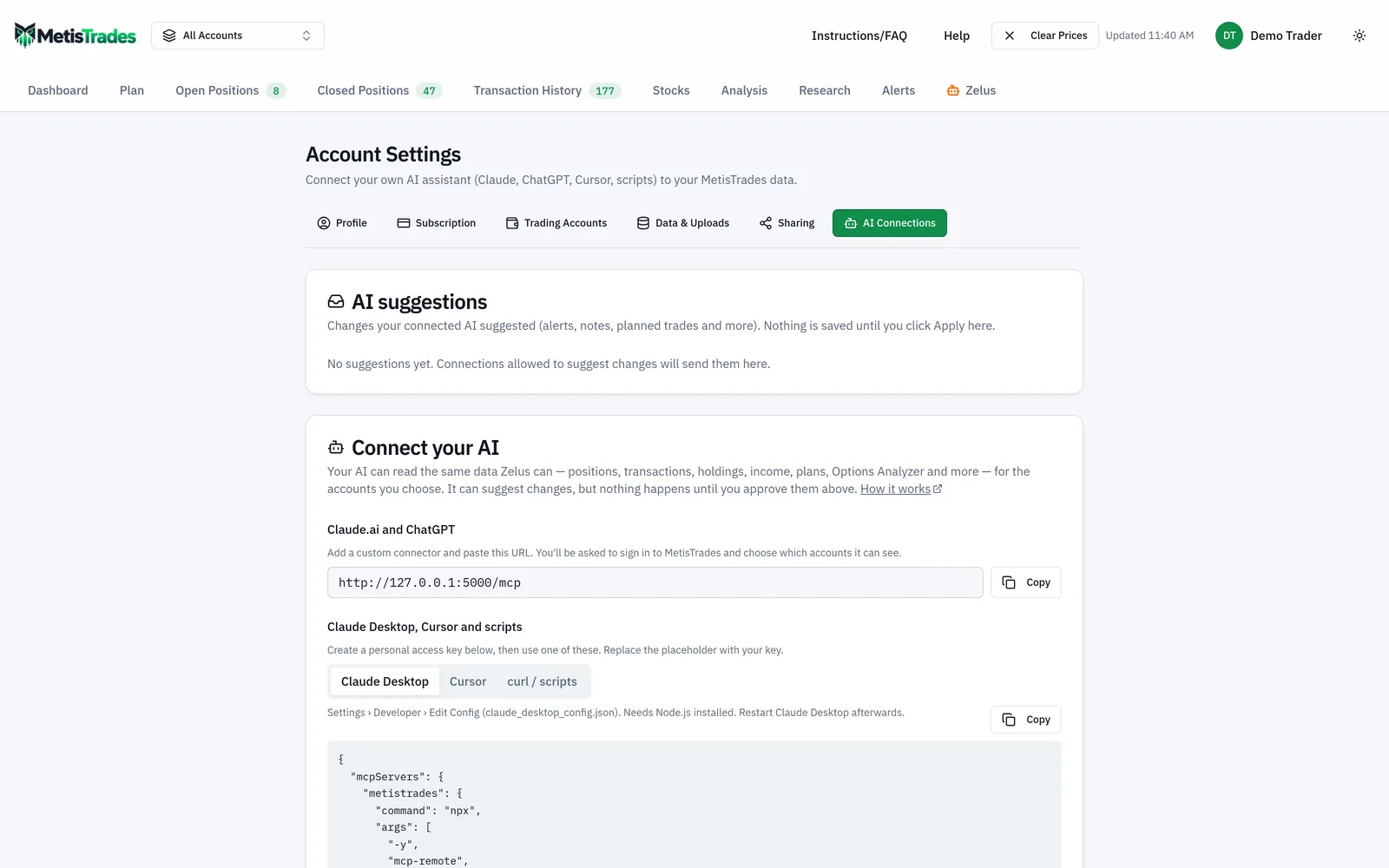
The page stacks three cards: the suggestions inbox at the top, the setup details for connecting an assistant, and the list of connections you have already approved. Look at which cards are populated before you add anything.
2a. Connect Claude.ai or ChatGPT
In the Connect your AI card, the Claude.ai and ChatGPT part shows the connector URL with a copy button. Copy it and add it as a custom connector in the AI app. That opens the MetisTrades consent screen at /oauth/authorize, signing you in first if needed.
The consent screen reads Connect … to MetisTrades? and shows what the app will and will not be able to do, plus two decisions:
- Which accounts can it see? — for the scenario, choose Only the accounts I choose and tick Main Brokerage alone.
- Allow it to suggest changes — turn this on if you want the draft note; leave it off for a read-only connection.
Allow access sends you back to the app, which can then call the tools. Deny sends you back with no access. Approved apps appear under Active connections. Without Pro you see Pro subscription required instead and the app gets no access.
2b. Create a personal key for Claude Desktop, Cursor or a script
The Claude Desktop, Cursor and scripts part has ready-made setup snippets on three tabs — Claude Desktop, Cursor and curl / scripts — and each says where the snippet goes. The placeholder in the snippet is replaced with a personal access key.
Click New key to open New personal access key:
- Name — required. Something like "Claude Desktop — Main" so you can tell keys apart later.
- Which accounts can it see? — All accounts (including accounts you add later) or Only the accounts I choose, with a checkbox per account. Pick at least one. For the scenario, Main Brokerage only.
- Allow suggestions — off by default.
Create key shows Copy your key now with the full key and the setup snippets already filled in. This is the only time the full key is shown; afterwards only its prefix appears. Paste it into the snippet, then save the snippet where the tab tells you.
3. Check it in Active connections
Each row in Active connections shows the name, whether it is a Personal key or a Signed-in app, Can suggest changes when suggestions are allowed, the key's short prefix for keys, Accounts: the trading accounts it can read, when it was created and when it was last used (or never used). Confirm the Accounts: line says Main Brokerage and nothing else.
4. Handle the suggestion
Ask your question in the AI app. If the assistant drafts the XYZ note, it lands in the AI suggestions card, grouped under From and the connection's name, on the same approval card Zelus uses, with Apply and Dismiss. Applying runs the same checks as applying a Zelus suggestion in your own browser session.
5. Revoke when you are finished
Revoke on the row asks Revoke …? and stops the connection immediately; it cannot be restored. Removing the connector inside Claude or ChatGPT does not revoke its access here, so do it from this page.
How to read the results
The Accounts: line is the real security boundary. If it names Main Brokerage, that is what the connection can reach, whatever you type into the chat. A connection limited to specific accounts also does not get the tools for data that is not tied to one account — saved chart analyses and projections, whole-book reports, risk targets, income goal, margin and retirement plans, saved simulation runs — and it does not see alerts, notes, tags or plans that are not tied to an account. So in the scenario, "what has the XYZ wheel cycle produced?" is answerable; "how is my whole book positioned?" is not.
Can suggest changes tells you what the inbox will receive. A connection without that label can read and answer but will not put anything in the inbox.
Activity opens a log of recent tool calls with the time, the tool name and whether it succeeded. Read it as a record of what the assistant actually asked for, not as a record of what it then said to you.
The usage line below the snippets shows today's usage against the daily limits: tool calls, option quotes and fresh research lookups. The limits reset at midnight Eastern and apply per user across all your connections, so a chatty afternoon in ChatGPT eats into what a script can do that evening.
The badge next to the AI suggestions title counts suggestions still waiting for you. With nothing waiting, the card says No suggestions yet. Connections allowed to suggest changes will send them here. A connection you later revoke is marked revoked in the inbox, and its suggestions stay there.
On the numbers themselves: the AI uses the same lookups Zelus uses, so for the same accounts its figures match the pages and Zelus. That means the $255 of premium and the $47.45 net cost per share it reports come from your imported transactions — and it also means a stale or incomplete import produces a stale or incomplete answer in chat, exactly as it would on screen. A quote the assistant repeats is a delayed or latest-available reference price, not a price you can trade at.
Limits and assumptions
The section assumes an active Pro subscription. Without active access the AI Connections tab is not offered, unless you still have connections: then the tab shows a paused view listing them, each with a Revoke button, and nothing else. You can still revoke while your subscription is inactive.
Rate and volume limits apply: up to 60 tool calls a minute per connection, and only a few calls at a time per user — one at a time for heavy tools such as simulations and deep dives. Daily caps per user on tool calls, option quotes and fresh research lookups apply across all connections and reset at midnight Eastern.
Large results are trimmed to fit. Charts, heatmaps and other interactive cards are not sent to outside AIs; the tools return data only, so anything you want to look at visually still belongs on the site. Options Analyzer access follows your plan and the site's settings, the same as on the site. Suggestions can be applied only when AI suggestions are turned on site-wide.
Treat a personal key like a password: anyone holding it can read the accounts it covers until you revoke it. A signed-in app gets one-hour access that renews automatically, and after 30 days unused it asks you to sign in again.
Finally, the usual caveats on the data itself. Prices use delayed quotes or the latest available price. Figures derived from imported transactions are estimates and depend on complete, accurate imports — the $455 cycle total in the scenario is only as good as the transactions behind it. A connected AI does not pay for itself out of Zelus credits; your AI app pays for its own thinking, and the daily limits keep market-data lookups in check instead.
Common mistakes
- Giving every connection All accounts out of habit. Fix: choose Only the accounts I choose and tick just the account you want read, as with Main Brokerage above.
- Expecting a single-account connection to answer whole-book questions. Fix: a connection limited to specific accounts does not get the tools for whole-book reports, risk targets, income goal, margin and retirement plans or saved simulation runs — use a connection scoped to all accounts, or the site.
- Closing the Copy your key now dialog before saving the key. Fix: the full key is shown once; if you lose it, revoke the old key and create a new one.
- Deleting the connector inside Claude or ChatGPT and assuming access has ended. Fix: find the app under Active connections and choose Revoke.
- Thinking a suggestion has already been applied because the AI said it was done. Fix: open the AI suggestions card and click Apply or Dismiss yourself; the badge counts what is still waiting.
- Pasting a key into a shared config file or a repository. Fix: treat it like a password, keep it to one machine, and revoke it the moment it might have been seen.
- Treating a quote the assistant repeats as an executable price. Fix: read it as delayed or latest-available reference data and confirm at your broker before trading.
Related guides and help pages
Related guides
- Trade Path: how far each closed trade ran for and against you
- Plan, Track, Optimize: a complete tour of MetisTrades
- Meet Zelus: the AI assistant that answers questions about your own portfolio
- Letting Zelus draft changes for you to review
- How Zelus Credits Work: Allowance, Top-Ups and What a Reply Costs
- Asking Zelus for a portfolio report: the capability browser and the one-click reports